live_tv
Livestream Starting Soon
00
Hours
:
00
Minutes
:
00
Seconds
Up next in 10

How to Bypass Google Verification in KARBONN K9 Kavach - Skip Google Protection / Unlock FRP KARBONN
May 24, 2024

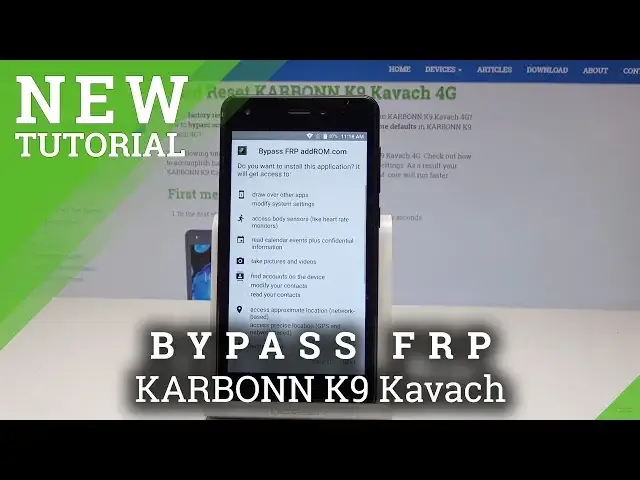
The best way to remove factory reset protection from KARBONN K9 Kavach. Let's unlock KARBONN K9 Kavach and bypass Google verification. If you forgot the Google account password and the Google protection was activate you should follow our steps. In this video you can see the whole process of skipping Google protection.
How to unlock KARBONN K9 Kavach? How to remove factory reset protection in KARBONN K9 Kavach? How to skip Google verification in KARBONN K9 Kavach? How to bypass Google verification in KARBONN K9 Kavach? How to activate KARBONN K9 Kavach without the Google account? How to skip Google sign-in? How to unlock FRP in KARBONN K9 Kavach?
More Info about KARBONN K9 Kavach:
https://www.hardreset.info/devices/karbonn/karbonn-k9-kavach-4g/hardreset/first-method/
Show More Show Less View Video Transcript
0:00
Here I have Carvon K9 KVag and let me show you how to bypass Google verification
0:12
the following device. So let me show you how to remove factory risk protection, how to activate this device with the forgotten Google account
0:20
At the very beginning, let's start from this screen and let's go back to the first welcome panel
0:25
Of course, you have to have the internet access. So let's go back
0:29
choose here vision settings tap talkback let's enable talkback tab okay let's draw L letter
0:42
tap talk back settings double tap to confirm it all right let's hold down
0:50
volume down and volume up simultaneously those two keys tab okay double tap to confirm it
0:59
Top back suspended. And you just disable talkback, that's what we need
1:03
Let's scroll down. Choose here help and feedback and select get started with voice access
1:11
Let's play this video. And here the clock icon should pops up
1:17
Let's tap it. Alright, tab accept and continue
1:29
Choose no thanks. And now let's enter the following website, Hard Reset. Info
1:43
All right, hard reset. Let's use the menu key right here and choose download
1:55
Let's enter the following phrase. Let me just enter this website one more time
2:19
Let's use menu key. Tap download. Alright, so now let's enter here the Apex
2:35
Tap search. This is Apex launcher, so the app that we should install
2:47
Here let's tap download right here. Choose update permissions. Tap allow Chrome to access photos, media, etc
3:01
Tap okay. Tap open. Select settings
3:14
And here you need to enable the unknown sources. Tap okay. Let's go back
3:20
Now let's download this app one. Let's just upload this app one more time
3:25
Tap arrow. Tap download. Choose open
3:38
Let's install the Apex Launcher. here and this is the apex launcher so as you can see the home screen pops up so now let's
3:59
tap the apps icon find here and select settings scroll down and choose here the security and
4:11
fingerprint scroll down again choose device administration let's tap the android device manager and
4:18
choose the Active the Device Administrator. Alright, let's go back and here you need to find
4:28
I need to go back again to the settings of apps right here Let use more key and select show system
4:39
And now we need to disable a few apps. So let's start with Google Account Manager
4:52
So here I have Google Account Manager. And if here you can do anything, you should go back and tap disable app
5:39
So that's what we need. Let's now go back to open Google app
5:46
Here you need to choose the storage. Let's tap manage space. Let's clear all data
5:59
Tab okay. Let's go back. And here you need to also disable the following up
6:10
Tap disable up. Let's now go back and now we need to open the Google Play service
6:20
Here I have Google Play service and here you need to also tap storage and manage space
6:27
But before you do it, let's here choose clear all data. Tap OK
6:35
Let's go back. Let's also here just clear cache and let me clear all data one more time
6:46
Just to be sure. Now let's go back. Now let's go back and tap disable
6:54
Tap disable up. Let's go back again
7:10
And now you need to disable Google Play Store. Tap storage. Here you can tap ClearCash and choose Clear Data tab OK
7:24
Let's go back and let's also disable the following app
7:35
And now let's go back here, let's use the menu key or the following more key
7:45
Here you can also tap disabled. And as you can see here, you've got the following app disabled
7:49
So that's what we need. Now you need to go back here a couple of times
7:56
Or here you can also open the following Google Chrome also
8:13
And here let's enter the following website. enter the following website, Hardgreases.Info
8:17
Let's use the download button again. And here you need to enter the following app
8:26
Let's just load the download page. And let's here enter Google Play Services
8:45
Tap search
8:55
This is the following app. Let tap download Scroll down tap download again
9:31
Open. Tap settings. Let's enable the unknown sources again
9:44
Let's go back. Let's choose download one more time. Choose download. Tap open, tap next and install
10:12
You need to just install this app. All right, let's choose open
10:53
And this is this app. So here, for example, you can use security options and other stuff, but basically you don't
10:59
need to do here anything. You need to just open this app to have some other permissions
11:04
Now you need to just go back and here let's try to use the following homepage, tab downloads
11:11
Here you should find the Apex Launcher, let me do it. Let's tap install again
11:18
Tap open
11:35
Let's here choose app icon, find here and select settings. Now you need to scroll down to choose here the accounts
11:48
Add account, tap Google. Let's wait a few seconds you need to here sign in into some Google account
11:57
It could be any Google account, even a new one, not connected to this device, just the Google
12:02
account that you know the email and password. Let's just enter my email, not connected to this device
12:12
All right, let's tap next. That's what I need to do and let me enter the password
12:21
Alright, if you are ready, let's tap here next
12:35
Let's wait a few seconds, tap I agree. Alright, here let's go back or you can for example here open the apps using this menu
12:56
Choose here apps and now you need to enable a few apps
13:02
So let's here choose disabled and here you should find your list
13:09
Now let me enable those apps. Tap enable, let's go back. Let's tap enable again
13:18
Let's here tap enable one more time. Let's just simply enable all apps
13:25
Let's go back. And here you need to also find and select the security features right here
13:34
And let scroll down to choose the device administration Let enable the following Android Device Manager The first one let activate the device administrator
13:47
Right here, that's what we need to do. And now all you need to do is simply reboot the device
13:52
So let me press Power key, then choose Reboot, tab OK to confirm it, and wait until your device
13:59
will be ready. Using Google Text to Speech Engine
14:25
Let me tap here exit, double tap to confirm it. Exit button
14:33
Choose vision settings, double tap. Vision settings. Tap your talkback settings, double tap to confirm it and let's disable talkback
14:44
Tap okay. Okay. That's it. Now you can use without the talkback so that's what we need to do
14:54
Let's tap get started. Tap skip. Set up as a new
15:06
The phone is checking network and adding a few finishing touches. So let's make a couple of seconds
15:29
As you can see account added, so the Google account that you had previously is added
15:33
It's a good sign, tap here next. Let's go next, set up later those things
16:03
And as you can see, the home screen pops up. But to fully accomplish the RFP removal, let's just accomplish here the Hard-Wisitoration
16:14
So let's here tap apps icon. Find here and select the settings
16:19
Oh, here I have the settings. Scroll down again and choose here backup and reset
16:27
Tap factory data reset, choose reset phone and erase everything. That's it, the phone is performing the hard reset, so let's wait until the operation will be completed
16:57
Alright, welcome Paolopopop's up, so here let's stop get started
17:13
Tap skip. Let me try to activate the device, set up as a new
17:22
Let me skip the middle. Let me don't use any Wi-Fi to activate my device
17:32
Tap next, next. Here let's tap next one more time
17:43
And here let's also choose next. keep unlocking with fingerprint, tap stop later and that's it the home screen pops up so everything
17:58
went well thank you for watching please subscribe our channel leave thumbs up under the video