0:06
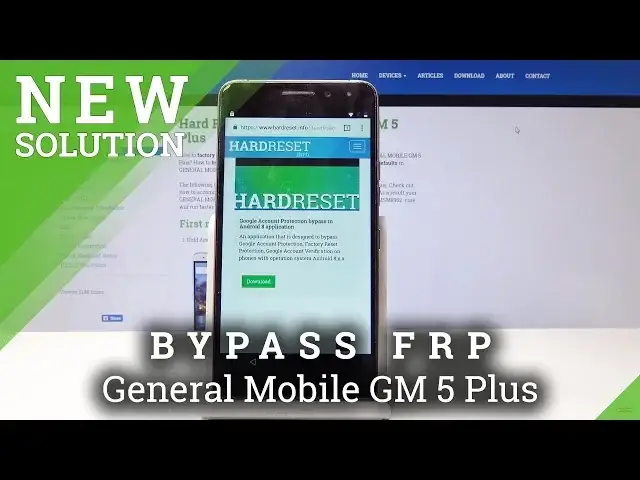
In front of me is a General Mobile GM5 Plus and I'll show you how to do a bypass of the Google verification
0:14
So as you can see, this one is locked and we'll need to start off by connecting to the Wi-Fi
0:20
So let's do that. And I'm already connected as you can probably see and it should go straight to the verification
0:29
So yeah. But you should have a screen where it tells you to pick a network before you can proceed
0:35
So once you have connected to some kind of network, go all the way back to the first screen
0:40
And from here, we'll tap on the vision settings. So here, then tap on Talkback and enable it
0:51
Tap on OK. I'm going to lower the volume so I can actually talk
1:02
So from here we'll draw an L on the screen like so and top on talk settings
1:12
Once to select it and then double tap it to go there. And from here we need to now disable talk back because as you can see we can't really scroll
1:22
So hold volume up and down together. You'll get this message like so
1:29
Ignore it. And once more, hold volume up and down. And as you can see, now the message came up that talkback is now off
1:41
So now we can actually scroll all the way down into help and feedback
1:47
And from here, we're going to tap on search. so here and we're going to search for
1:54
Morse code so I already have it here in the popular but if you don't see it
2:02
you can just type in and search for it and use more
2:09
Morse code Android so it's this one tap on it and you should see this video
2:15
so just tap on the video and you should see a little clock right here and tap on that clock and it will take us to Chrome where you get to accept conditions tap on
2:32
continue next and no thank you. And now tap on the search bar and navigate to a hard
2:44
reset that info. So once we're here
3:00
going to tap on the menu and top on download. Now from here we're going to search for Android 8
3:22
So like so and search and search
3:40
Go down to the CD download for F-RP bypass. Now once more go down and tap again on download right here
3:57
Tap on allow, okay and open. We'll need to enable unknown sources, so settings and select this thing on
4:09
And I'll go back one time and from here. Now we get to install this, so tap on install, open once it's installed, and tap on Google
4:26
Account Manage APK install, and choose for version 6.0. Now once more we need to go into settings and enable unknown sources so boom go back and install Once that in solve we can just click on done And now we going to tap on Bypass FRP and browser sign in
4:53
and then tap on that three little dots up here. Once more browser sign in, okay
5:03
And now we get to put in the new Google account. So I'm going to put mine in
5:08
and then tap on next and now I'm going to put in my password so
5:26
and take the phone for a second And I tapped on sign-in
5:42
And you might get this message, couldn't sign in, but the device actually did sign in, as we will see soon enough
5:50
So we can actually now hold the power button and tap on restart
5:58
Again, disregarding the message that it didn't sign in because it actually did
6:08
and now we can go to the setup of the device just quickly because we're going to actually do a harder reset right after this
6:20
anyway to remove all the software and everything just to make it a clean
6:24
Android stop on next as you can see we're already past the verification so
6:35
yeah not now doesn't really matter anyway I agree And as you can see now we in Android without the activation and the account that it using is the one that we put in previously before we rebooted the device So now that that is done we actually going to turn off the phone or you can go through settings whichever one you like
7:16
Maybe actually quicker through settings. So here, go all the way down to system, then reset, and do a factory data reset
7:27
reset phone, erase everything, and we're gonna wait for the factory data reset to go all the way through
7:35
and I'll be back once we're back into the Android setup screen
7:57
and as can see now the process is finished and you can now set up the device
8:21
fully the way we like it. and everything should work or well not sure it will work so tap on next I'm just
8:41
skipping this through just to finish it you can go through it a little bit
8:46
deeper and customize the settings as you like and see the process is fully finished everything that we have downloaded it's gone it
9:02
wasn't really needed and a device is fully clean unlocked and ready to use so if
9:10
you found this video helpful don't forget to hit like subscribe and thank you for watching