0:00
Hi everyone, in front of me I've got a Cubot Max 3 and let me share with you how to change keyboard language on this device
0:11
So first of all we have to open the keyboard. For example messages in this Google section, in the notes, whatever, just have the keyboard on the screen
0:19
And all we have to do right now is to simply enter the settings. If for some reason you cannot find the settings here, no worries, three dots icon, tap on got it and they will for sure be here
0:29
So let's tap on the languages, the settings sorry and enter the languages which are on the very first position
0:37
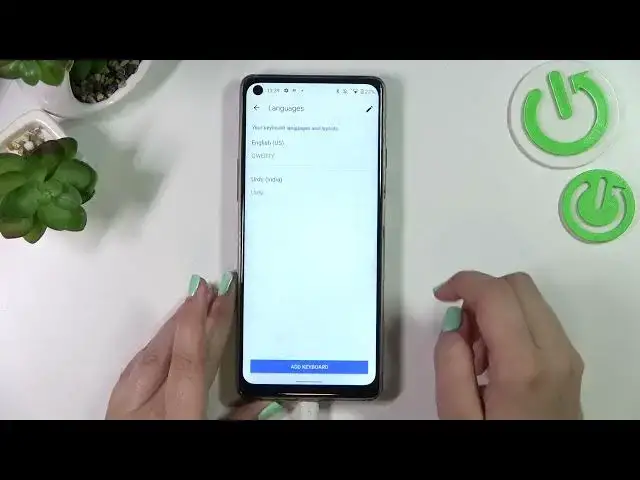
This is the list of all previously added languages and we've got only English right now so just tap on add keyboard
0:43
And here we've been transferred to the full, full impressive list of all available languages from which we can choose
0:50
So as you can see we've got plenty of options to choose from. I'm pretty sure that you will find the language you'd like to set
0:57
So basically just find it and tap on it. I will pick the Urdu one as it is a graphical language and you will be able to see the difference
1:05
So let's tap on the language and sometimes you will be able to pick the regions
1:10
So just tap. Here we've got the keyboard type. So of course depending on the language you will be able to pick only one or even up to five different keyboards
1:20
So it's of course up to you. If you want to pick and apply the keyboard just tap on it, make sure that it is marked
1:26
So I will I want only this one. So let me untick this option and tap on done if you're ready
1:34
As you can see we just got back to the list. We've got the Urdu language added
1:39
So now let's go back to the keyboard and check. Let's go back
1:47
And here we've got actually two differences. So first of all the spacebar it's not empty anymore
1:53
And right now we've got the name of the language we are currently using. And next to it we've got a globe icon which is let's say a language key and it will allow us to actually change the language
2:04
So right now I'm typing English but after tapping on the globe icon I can easily switch to the Urdu one
2:10
Let's tap on it again and again we will have the English
2:15
So basically this is how to add the keyboard to a language. And now let me show you how to remove it because sometimes you don't need like two or three different languages added
2:24
So just go back to the keyboard to the settings sorry enter the languages and here in this step just tap on this pencil icon in the right upper corner
2:33
Now we can mark the language we'd like to remove and tap on the trash bin icon. Here we've got only English left so just like it was at the very beginning of the video
2:41
And after getting back to the keyboard you can see that first of all the language key disappeared
2:45
What's more the spacebar is empty which simply means that we cannot change the language
2:51
So actually that's all. This is how to change keyboard language in your Cubot Max 3
2:57
Thank you so much for watching. I hope that this video was helpful and if it was please hit the subscribe button and leave the thumbs up