0:00
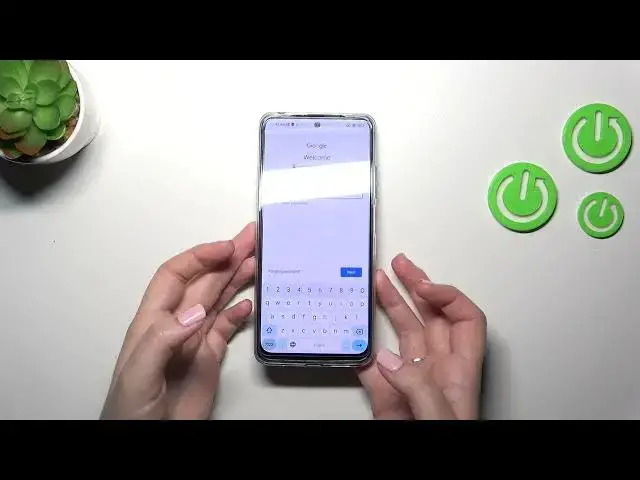
Hi everyone, in front of me I've got Xiaomi Redmi Note 12s and let me share with you how to manage Google account in this device
0:11
So by managing I mean adding and removing a Google account. So first of all, we have to enter the settings
0:18
Then let's scroll down to find proper section, the accounts and sync. Of course, you can do everything
0:25
So add and remove the account using Google section, but to be honest, I prefer this one. So let me do it by using it
0:33
After tapping we will have to tap on add account. As you can see, we do not have any previously added Google account
0:39
So naturally we have to start with adding a new one. So let's tap on it, tap on Google and make sure that you've got the internal connection because it is required for this operation
0:50
And from this step we can either create a new account if you do not have your own yet or simply type your email or phone
0:56
So let me do it and just a quick disclaimer. You do not have to enter the full email address, just the very first part of it before the add symbol because after tapping on next
1:06
your device will auto fill it. So right now we have to enter the password and let me do this out of the screen
1:15
All right, let's tap on next. Here we've got Google terms of service and privacy policy. So of course you can read it, just tap on it and here you've got the info
1:25
Let's tap on I agree after reading. Here we've got the shortcut of backup and storage info. So just tap on accept
1:34
And right now we can go back and as you can see, we just successfully added our Google account to this device
1:40
Of course, you can also remove it whenever you want to. Just enter this section, tap on the Google account
1:47
you want to remove, tap on more and remove account. Remove account again
1:52
If you will have any screen lock, your device will probably ask you to enter it to confirm the whole step
1:58
But as you can see, it will immediately remove the Google account. All right, so that will be all. Thank you so much for watching
2:05
I hope that this video was helpful. And if it was, please hit the subscribe button and leave the thumbs up