0:00
Hi everyone! In front of me I've got Samsung Galaxy S24 Ultra and let me
0:04
share with you how to add the fingerprint to this device. So let's start with opening the settings and here in the general list of course we have to localize
0:19
the security and privacy. Let's tap on it. Then let's tap on biometrics and tap on add fingerprints
0:27
If you've got the screen lock currently applied just like I have you will have to enter it to
0:32
confirm and then go directly to adding the fingerprint. If you do not have the screen lock
0:38
your device will require you to enter to enter actually add the screen lock. It is because that
0:45
for some reason the secret code won't the the fingerprint sensor won't work then you will still
0:51
be able to unlock your device with a regular screen lock so this is important. Let me enter it
0:56
here we've got the information about the fingerprint so just tap on continue and tap on
1:01
register. So this is our sensor it is as you can see under the screen so let me put my finger on
1:07
it and as you can see right now we have to do it multiple times in order to add our fingerprint
1:13
so try to catch every part of it for better recognition of course
1:19
Oh okay perfect we've got it added so you can add another or simply tap on done. And this is the
1:26
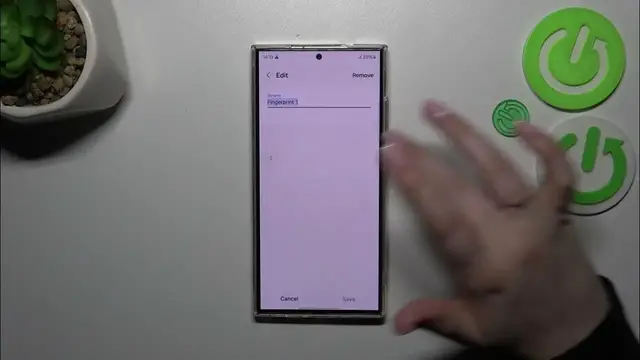
fingerprint section where we can customize our fingerprint. This is the fingerprint we just added
1:31
we can rename it or remove it in this section. We can add another fingerprint so I believe we can add
1:37
up to five different fingerprints. We can check out this fingerprint so if you've got more than
1:41
one fingerprint it is quite nice because you simply put the fingers on this sensor and your
1:47
device will show you which fingerprint it is. Here you can decide for what you want to use
1:54
the fingerprint for so the fingerprint unlock. You can decide whether you want to have the fingerprint
2:01
sensor always on even when the screen is off. You can show icon when the screen is off on the
2:08
always on display tap on show never. Really a lot of customization here show animation when unlocking
2:13
about fingerprints. Really a lot of things to to customize. Enough of talking let me lock the
2:20
device and let's check if it is working. So do we have the sensor? Not really it is not visible but
2:26
let me okay after tapping it will it should appear at least so let me put my finger on it
2:32
and as you can see the device is unlocked which means that we just successfully added the fingerprint
2:37
to it. All right so that will be all. Thank you so much for watching. I hope that this video was
2:42
helpful and if it was please hit the subscribe button and leave the thumbs up