0:00
Hi everyone. In front of me, I've got an Opelanote next Zoom and let me share with you how to add the fingerprint to this device
0:14
So first of all, let's enter the settings and now we have to scroll down to let's say this third section and tap on password and biometrics
0:23
Right now in the biometrics at the very first position we've got a fingerprint option
0:27
So let's tap on it. And this is the very first step of adding the fingerprint
0:31
So we have to add a backup password or simply screen lock
0:37
It is because if for some reason the fingerprint sensor won't work, then you will still be able to unlock your device without going through the hardres operation
0:46
which will simply wipe out all the data. So let's tap on continue
0:50
And as you can see, here we can either enter the password or use a different password type
0:55
So we can pick the pattern for digit password, 4 to 16 digit password password with 4 to 16 alphanumeric characters so simply pick the option you
1:05
really like i will stick with the pattern and now as you can see we have to connect at least four dots
1:11
so let me draw the pattern let redraw it in order to confirm and as you can see here we got the tip that if we are using the screen protector so it may affect the fingerprint sensor which is located under the screen let say
1:27
So simply tap on, okay. And as you can see, here we've got the sensor
1:31
and all we have to do right now is to simply put our finger on the sensor
1:35
and when we will feel the vibration, we have to take our finger
1:40
and again, place it on the sensor and do it multiple times in order to add your fingerprint fully
1:46
slightly change the position of it in order of course to add all of the edges of it
1:51
for better recognition. As you can see right now we have to enrol our finger
1:56
so simply just enrol it. Of course again for better recognition to simply catch everything
2:06
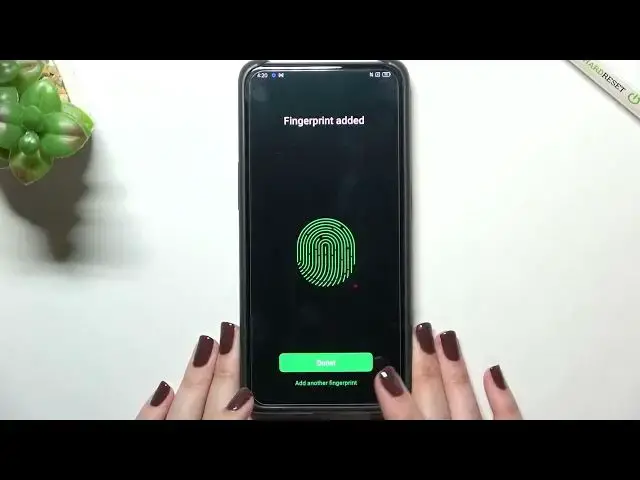
Okay and as you can see that's quite simple in this model in this device the fingerprint has been added successfully
2:12
if you want to you can add another fingerprint if not just upon done and we've been immediately transferred to the
2:18
fingerprint settings let's say options connected to the fingerprint this is the
2:22
fingerprint we just added we can remove it if you want to just by tapping on the trash bin icon but we can also rename it and let's rename it because why not
2:31
it was my index finger so let tap on the stick icon to confirm and as you can see it is immediately changed what more you can add a fingerprint I mean another fingerprint probably I not really sure but probably you can
2:45
add up to five fingerprints under it you've got the option and where you can
2:51
decide for what you want to use the fingerprint for and as you can see the screen
2:54
unlock is definitely set but after tapping on it you can also pick it I mean set it
3:00
for the log apps and private safe it's up to you if you want to
3:04
use those options or not I will leave it like this under it we've got the
3:08
fingerprint animation which means that you can customize it and as you can see
3:12
here we've got eight different options I'm so sorry for the camera focus
3:18
please okay getting back to the animations we've got eight different animations from which you can choose if you want to change it just up on it here
3:27
you've got the also the preview of it the animation how it will look like and I
3:32
don't know which option I like the most okay let's leave maybe this one let's get a pack and here you've got also the option
3:41
screen of unlock which means that here you can decide if you want to show the fingerprint icon the
3:47
fingerprint sensor when the screen is turned off and i will leave it like this because for me it's more
3:54
comfortable so okay enough of talking let check if the fingerprint actually works So let log the device And as you can see here we got the sensor
4:05
And again, the camera is losing the focus. I'm so sorry about that. Because of that
4:10
Come on. Come on, camera. I have no idea what's going on with the camera, really
4:17
Okay. All right. So, as I said, we had the fingerprint sensor
4:24
after tapping we should also have it but unfortunately we do not have let me do it again
4:30
and here we've got the sensor so let's put our finger on it and as you can see the device is
4:36
immediately unblocked which means that we successfully added our fingerprint to it and as I
4:43
said that you have to add the backup pattern it means that if for some reason as I said it won't work
4:48
then you will still be able to unlock your device using the pattern pen or password which
4:54
you've previously said. All right, so actually this is it. This is how to add the
4:58
fingerprint in your Op-Oreno 10x zoom. Thank you so much for watching. I really hope
5:04
that this video is helpful and if it was please hit the subscribe button and leave the