0:00
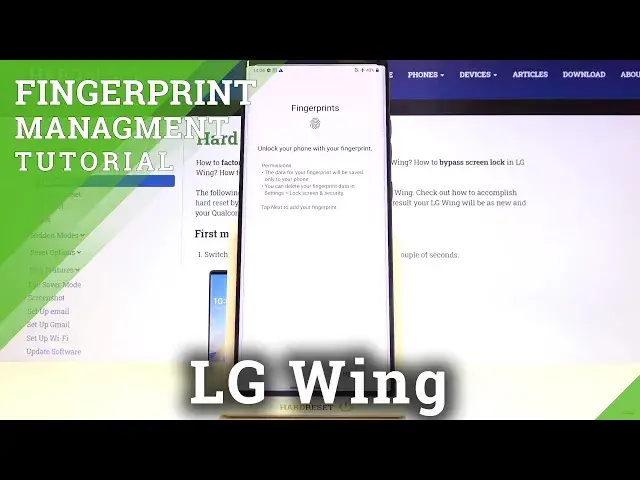
Hi everyone, here we've got LG Wing and let me show you how to add a fingerprint to this device
0:12
So first of all we have to enter the settings and now let's tap on lock screen and security
0:17
As you can see here we've got the fingerprints option so let's enter and now your device
0:21
is telling you that you will be able to unlock your phone with your fingerprint
0:25
What's more the data for it will be saved only to your phone and you will be able to
0:29
delete it wherever you want actually. So simply tap on next. Now we have to add an additional screen lock
0:36
If you've got one currently set no worries you will be just transferred to another step
0:41
If not you really have to do it right now because this is a second way to unlock your phone
0:45
So for example in case that the fingerprint sensor will crash then you will be able to
0:50
unlock your device and it's very important actually remember this lock screen because
0:56
if not and in case that the fingerprint won't work then you will be unable to unlock your
1:01
phone and you will have to erase all the data for example in the hard reset operation
1:06
So now you can choose from the pattern pin or password simply tap on the option you'd
1:10
like to use for example the pattern. Now let's draw the pattern tap on next redraw it and confirm
1:18
And as you can see here we've got the notification settings so here we can turn them on or off
1:23
just by tapping on the switcher and leaving them on you can choose the style so you can
1:28
show the icons and after tapping on the icon you will see the notification content or you
1:33
can show content without any icons but I will show the icons for example so simply make
1:39
sure that the option you'd like to use is marked and here you can decide if you'd like
1:43
to hide sensitive notification content and I think I will leave it like this so simply
1:48
tap on apply if you are ready. And now we have to add our fingerprint and in order to do that we have to place our finger
1:55
on the sensor which is located right here so let me do it and as you can see now I have
2:02
to do it multiple times in order to add my fingerprint fully
2:08
And now we have to unroll our finger in order to add all of the edges of it of course for
2:13
better recognition so tap on next and unroll your finger. And as you can see we just added our fingerprint if you would like to add another just tap
2:26
on more if not tap on ok. And as you can see here we've got our fingerprint settings this is the finger we just added
2:34
we can remove it by tapping on the stretchman icon on or rename it by tapping on it so it's
2:39
a cool option if you've got a lot of fingerprints added so let me rename mine tap on save and
2:47
as you can see it immediately changes. Of course you can add a fingerprint by tapping here and you can check for fingerprints so
2:53
if you've got for example 3, 4 or 5 fingerprints added then you can tap on it and this is let's
2:59
say a test and your device will detect the finger you just put on the sensor
3:05
Under it we've got the customization options so here we can decide if you'd like to use
3:10
the fingerprint as a screen lock and now it is obviously turned on if you'd like to turn
3:14
it off just tap on the switcher but let me turn it on
3:18
Here we've got the content lock so you can use your fingerprint in order to lock the
3:22
gallery or a quick memo so it's up to you if you'd like to turn it on and here we've
3:28
got the option to tap to show icon when screen is off so now it is turned on if you'd like
3:34
to turn it off just tap on the switcher oh sorry that was a misclick just tap on the
3:39
switcher but I would leave it like this. As you can see here we've got the icon effect so we can tap on it and here we can customize
3:45
the sensor the look of the sensor so we've got three different options to choose from
3:51
if you'd like to set for example this one just tap on it mark it and get back but I
3:56
think I will leave the default one. Okay so actually this is the whole customization and adding the fingerprint so now we can check
4:04
if it is working let's lock our device and as you can see here we've got the sensor so
4:10
let me put my finger on it and as you can see this device is unblocked so it means that
4:15
we successfully added our fingerprint to it. What's more we can unblock it another way let me show you just by using the pattern
4:24
pin or password you just set so here we've got the sensor of course you can put your
4:29
finger on it but you can also swipe and enter the pattern for example and as you can see
4:34
it is also unblocked. So actually that's all this is how to add a fingerprint to your LG Wing
4:40
Thank you so much for watching I hope that this video was helpful and if it was please
4:44
hit the subscribe button and leave the thumbs up