live_tv
Livestream Starting Soon
00
Hours
:
00
Minutes
:
00
Seconds
Up next in 10


Learn more about POPTEL P8:
https://www.hardreset.info/devices/poptel/poptel-p8/
In the above video instruction you will find out how to discover all of the super useful tricks that are available on your smartphone. Follow the presented tutorial and smoothly start using these cool features in order to use your device easier.
How to enable hidden options in POPTEL P8? How to enable secret options in POPTEL P8? How to activate super feature in POPTEL P8? Where to find the best apps in POPTEL P8?
Follow us on Instagram ► https://www.instagram.com/hardreset.info/
Like us on Facebook ► https://www.facebook.com/hardresetinfo/
Tweet us on Twitter ► https://twitter.com/HardresetI/
Show More Show Less View Video Transcript
0:00
Welcome
0:02
And for the name is a Pop-Tel P8 and today I'll show you a couple tweaks and tricks that I can do on this device
0:11
So we're going to begin with the Dura Speed which will allow foreground apps to just want a little bit smoother
0:17
And to enable this you would go into the settings. And from here it's an app called Dura Speed or maybe setting right here and all you need to do is just enable it
0:28
it and now whatever app is open will be running a little bit better and anything that has been
0:35
in the background like all these will be basically frozen or shut off to increase the performance
0:41
of the app that you're trying to use at the moment now second thing that I want to share is the
0:46
airplane mode and not the conventional use of it so normally you enable it it disconnects from
0:53
basically everything and it's just all kind of uneventful But the secondary use for it is if you have some kind of bad call quality and whenever you're trying to talk to someone
1:04
they're being like the conversation keeps cutting out and just can't understand what they're saying
1:10
I would advise on using the airplane mode, so enable it and then disable it
1:14
And what this will do is just disconnect from the cell tower that you are connected at the time
1:18
and reconnect to the closest one to you and hopefully also improve the call quality
1:24
if you have been struggling in that department. So moving on we're going to go into the reducing animations
1:32
Now the phone doesn actually come with any option to reduce animations in the normal settings but you have the option through developer settings so if you go into the settings itself scroll scroll all the way down go into the system and then
1:48
find about phone now disregard the fact that I already have it enabled right
1:55
here and go to about phone and from here you should find build number there it is
2:02
so second last top on it seven times for me It says no need, you are now a developer
2:08
But if you don't have it enabled, it will, after 7th tabbed, it will either show you that you are now a developer
2:15
or give you a, if you have some kind of protection set up
2:19
on your device, it will have you confirm the pattern, password, whatever that is
2:26
And then it will show the message that you are now a developer. So from here you can go to the developer options
2:32
and scroll almost all the way down. a little bit past halfway. Like right here you can see the
2:40
the marker right here and you will have the window animation scale
2:44
transition animation scale and animation duration scale. So each one of them
2:48
corresponds to different animation. For instance the window animation is the window that will open whenever you have something to select so if I tap on this that will be a
2:55
window. And you can set it up for instance times 10 so you can see a
2:59
drastic difference on the speed of it. But you can also set it up to be
3:04
completely off and just as anything else now animations on here are very
3:10
smooth so be setting them to off might be just the best way and now whenever you
3:15
tap on anything there no more animation apps just pop in and out of existence and they lacking animation which just allows you to access the app a little bit faster and quicker without actually having to look at these janky animations
3:32
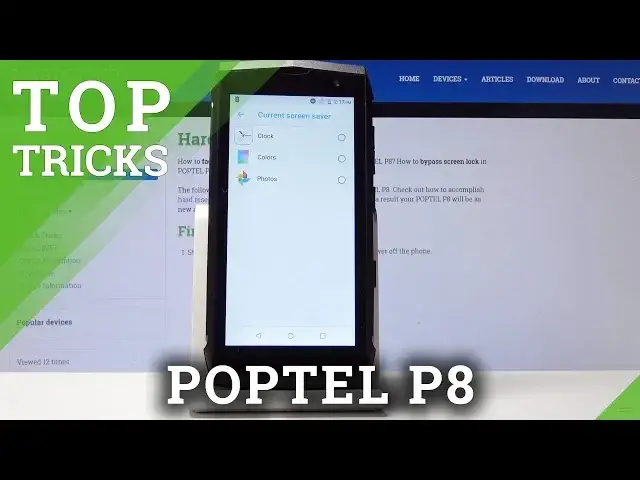
Okay so moving on we're going to go into the screensaver and what will allow you to do is set an option so when your device is plugged in it can actually display certain information
3:42
So to do it we're going to go into the settings again and then let's go on to the
3:47
display so right here advanced we should find screen saver and can tap on current screen saver
3:57
to choose one you have different options so you have colors which colors doesn't really give you
4:04
anything apart from just rainbow barf everywhere but photos or clock are ones that you might actually
4:10
like so clock will display just a clock if i check this on and tap on start now you can see that that's
4:17
how it will look. Now, you can change it to something else like photos
4:23
but then you have to actually add photos to it that it displays, and then basically behaves like a picture frame
4:29
So clock might be the most useful. And once you have chosen that
4:33
you can actually also select when to start, and you have the option, for instance
4:38
when docked or when charging. So assuming you don't have a dock
4:44
charging probably would be the best. So whenever you're plugging the device to change, it will then whenever it goes the screen is off it will look like this so nice way
4:54
of actually for instance having like a clock when you going to sleep so you have a completely dark background but you can still see the time kind of like an ambient display but without actually needing the power to
5:09
use it so when it's going to run only when the device is charging okay and the last
5:18
thing that I want to share is one of my favorite ones which is the hiding the password
5:23
so when you're typing away a password for anything So here if I start typing away, you can see the latest letter I have pressed and anybody dedicated enough
5:33
will basically gather the entire password because if they're looking over your shoulder
5:37
they're seeing every letter being pressed in sequence. So there is a way to actually hide that and you'll go to again the settings and then under security
5:49
I already passed it. Where is it? Oh, there it is
6:03
Security and location, I was just looking for security. So from here, you can scroll down and you will have show a password
6:11
and by default for some reason this is enabled, so I'll just disable this
6:15
and now if we go back to showing the password, top on it
6:20
and you start typing away, you can see that there is no more visible password
6:24
just an immediate dot. So it helps a little bit more with a private
6:28
and just protection of your password. But that would conclude the tweaks and tricks that I'm sure
6:34
And if you found this very helpful, don't forget to like, subscribe. And thanks for watching
#Online Media
#Other
#Teleconferencing