0:02
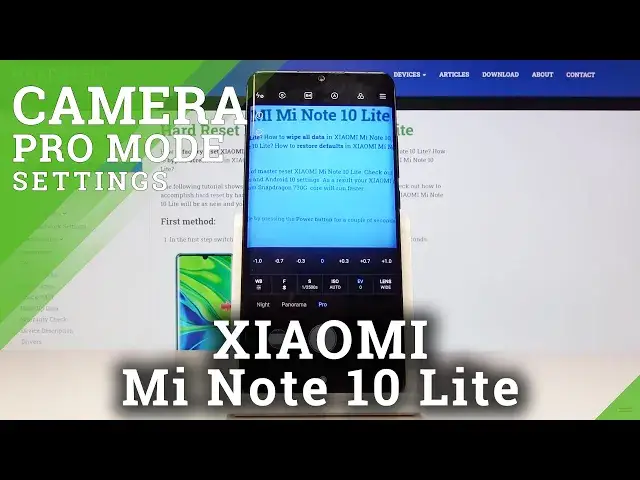
Here I've got Xiaomi Me Note 10 Light and I'm going to show the camera pro mode at this device
0:10
So at first we have to click on a camera button here and as you can see we are in the standard photo mode so we have to change it to the Pro and we can do it by using this settings bar here
0:20
and just simply go to the right to the end. And as you can see here we are in the Pro mode this gives us possibilities to choose shooting parameters by our cells
0:29
cells and let us to make experiments and learn photographic skills. So let's start with this settings bar here
0:39
The first one button here is the white balance so here we can change the temperature of our picture
0:44
and we can pick the light, this is the tangsten light, daylight, white fluorescent light, cloudy
0:50
light and also we get access to this slider with Calvin degrees and by using this we can manually adjust it
0:58
and make our picture just more warm and more cold as we need
1:02
This is how it works. The next one button here is the focusing, so here we can
1:07
change the autofocus to the manual focus by using the slider. This is how it works
1:16
And now let's go to the next parameter here. This is the shooter speed, so here we can change the time of taking picture
1:22
And as you can see we get access also to this slider and we can pick from pretty wide spectrum from 1 and 4 of of seconds which is very short to the 30 seconds of taking picture which is very long of course
1:35
So it's, we can make a lot of experiments with that. This is really cool here
1:41
And let's go to the next button. This is the ISO. So here we can control the camera's sensitivity to light
1:47
And also we have this slider and we can pick from 100 iso to the 6,400s
1:54
of ISO so this is also pretty wide spectrum of this. And now let's move to the next button here. This is the exposure compensation
2:02
and as you can see now it's locked because we add just these two parameters
2:07
shooter speed and ESO manually. So one of this should be on auto because
2:12
also the exposure compensation control the light of our picture. So when we for example stay on the ISO manually and tap on the auto
2:24
their speed we get access to it and also when we have this manuali and iso on auto we have the exposure
2:32
compensation unlocked so this control also the light so we can here make it make our picture just
2:38
more bright or more dark as we need this is how it works but remember about these two parameters
2:45
and the last one here button is the lens so we can pick the white lens ultra white lens and also
2:52
the macro lens so this is how it works here and now let move to this settings here the first one button i want to show you here is the metering so here we can pick center weighted metering frame
3:04
average metering and also this spot matering this is how it works and now let's have a
3:09
look at this button here this is interesting and not popular in a lot of smartphone cameras
3:17
here we can pick the focus picking so this is useful for example when you want to use
3:23
focusing manually and it shows us where is the focus so we can adjust it just better by seeing
3:31
this red signs here and the next one here is the exposure verification so here also we can
3:37
control our exposure and the camera should show us where is where are the under-exposed and
3:45
overexposed areas of our pictures so for example i'm going to overexposed it to show how it looks like
3:53
You can see for now we have these red lines and it shows us that in this place of the picture is too bright and we should go back with the exposure to lowest
4:06
So this is how it works. And now let's have a look at this button here. By tapping on this we get access to more advanced settings
4:13
Most of them are also available in the standard photo mode but there's one button with our letter
4:19
This is the Rav. This is special here. And here we can change the format of our picture to the wrap format This is used by professional photographers to saving photos in the best possible quality and post them in the photographic
4:35
graphic programs after that. So I think this is really pro here and this is useful. And now
4:42
again, I want to show you the next thing. When we tap on the screen, we have access to this ring
4:48
And of course, at first we are focusing. But, we can also separate this like that and we can adjust these two parameters this is the focusing
4:59
and this is the exposure compensation so here we can separate this and adjust it separately like that this is
5:05
how it works and after turn it on all of these settings we may want to go back to the original one
5:12
so these are these settings and this and by tapping on this button we have a quick access to the
5:17
reset or parameters to the default value so okay and as you can see all of that was reset
5:23
And now I'm going to take a picture. And let's go to the preview
5:40
So this is how it works. Thanks for watching, subscribe our channel and leave the thumbs up
5:53
You know, I'm going to be able to be