0:00
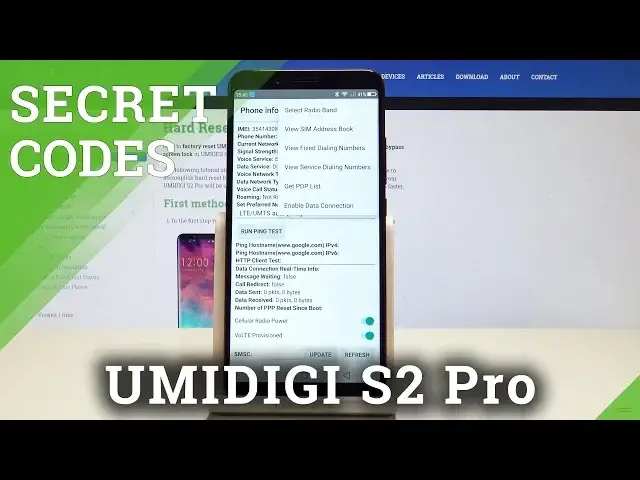
Back at you midiJS 2 Pro and let me show you how to use secret codes on the following device
0:13
So at the very beginning let's start by using your home screen. Find and select the fonts dialer and let's use the secret code
0:20
Asterix pound, asterix pound, four six, three six, pound asterix, pound asterix
0:29
As you can see the testing menu just pops up so here you can navigate by using the appropriate options
0:35
You can choose here the phone information in order to read the email number, phone number
0:40
current network, voice service. You can also here run a ping test or choose more key in order to select radio band, view
0:48
sim address book, view fixed dialing numbers or get PDP list. Let's go back and here you can also choose usage statistics so here you can read the
0:58
last time used or usage time. Use back key again, tap Wi-Fi information, here you can select Wi-Fi API so here you
1:06
may disable network, disconnect network, enable network, get configured networks or get connection info
1:12
You can also choose here Wi-Fi config and here you can use configured networks from
1:16
your device. Use back key, here you can select Wi-Fi status so here you can read the statistics with your
1:24
Wi-Fi, you can refresh or start or run a ping test. Use back key again, let me quit the testing menu, now it's time to open the calendar
1:33
info so you can do it by using this code, asterix pound, asterix pound, two two five
1:40
pound asterix, pound asterix. As you can see calendar info just pops up so here you can read information about your calendar
1:49
If you would like to go back let's use back key, now you can also open the Google Play
1:54
service so let's use this code, asterix pound, asterix pound, four two six pound asterix
2:03
pound asterix. And as you can see the Google Play service just pops up so here you can read the following information
2:10
And in order to check the email number on this device let's use this code, asterix pound
2:15
zero six pound and the email number just pops up right here, tap OK to close this window
2:21
So everything went well, thank you for watching, please subscribe our channel, leave thumbs