0:53
So, let's open the Google Play Store
0:56
In the store, tap on Search. Type in ZEP and then tap on Search button
1:03
And you should see this application ZEP, formerly known as Amazfit, developed by Huami with this icon
1:12
Now tap on the Install button to download and install the application. And once the application is done installing you can tap on the open button to open it In the application you should see the login page
1:29
Basically, we need to either login into a ZEP account or create a new one if you don't have an account
1:36
To create a new account, you can tap on sign up. You can also use the third party applications like Google, Facebook, Xiaomi
1:43
I already have an account, so I'm going to tap right here. Enter the email address
1:52
Then tap right here and enter the password, so give me a couple of seconds. And once you're done entering the credentials, you can tap on sign in to login
2:07
After you login into an application, you will see the homepage. Now tap on the profile icon
2:13
You should see the My Devices category right here. tap on add device
2:16
and then tap on the watch category here tap on got it
2:23
allow the permission for the location the app will want you to allow the permission for the location all the time
2:31
and it's gonna bother you about it quite a lot so I'm gonna just allow it
2:36
but you can keep it on allow while using the app or ask every time but remember that it gonna bother you about that so once you allow the permission for the location you need to tap on Got It and allow the permission for the pictures and video
2:51
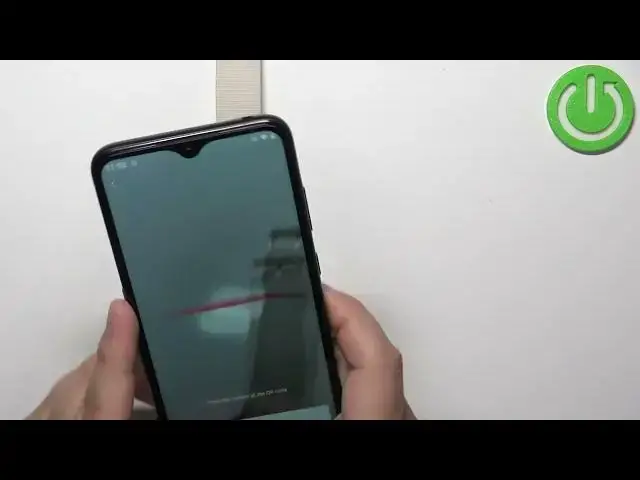
And after you allow the permission, you should see this on the screen. Basically, we need to scan the QR code from our watch
2:56
with the phone's camera. So we need to pick up our phone and point it on the watch
3:03
And once the phone scans the QR code, I to start pairing the devices together
3:12
For some reason it has problems with connecting devices together. Let me tap on cancel
3:18
And quickly open the Bluetooth settings. Ok, I don't see anything right here
3:25
So it's not this. Let's try again. So let's go back to AMP, tap on watch
3:31
Scan the QR code. I hopefully this time it will connect. Ok, this time it worked
3:45
So we can tap on the check mark on the watch to confirm. And here we can basically
4:22
i tap on Synchronize Account Information. If you want to set it up as new, tap on Set as New Device
4:29
I'm just going to tap on Set as New Device. Then tap on Done
4:43
And here we have a tutorial on how to use our watch. We can go through it by swiping left on the screen
4:48
I once you're done you can tap on Done button. And at this point you should see the device page for your GTS3
4:57
and also you should be able to use your watch. Okay, and that's how you pair this watch with the Android phone
5:06
Thank you for watching. If you found this video helpful, please consider subscribing to our channel
5:12
and leaving a like on the video. Dziękuje za oglądanie