0:00
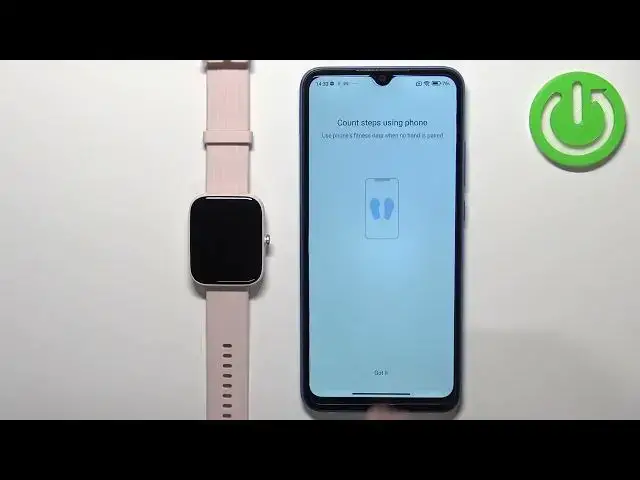
Hello! In front of me I have Amazfit BIP 3 Pro and I'm gonna show you how to pair
0:05
this watch with the Android phone. First we need to turn on the watch. You can do it by pressing and holding the
0:16
side button. Keep holding it until you see the Amazfit logo on the screen. Once
0:22
you see the logo on the screen you can release the button and wait until the
0:26
watch turns on. And after the watch turns on you should see the QR code on
0:30
the screen. This means we need to download and install the ZEPP application
0:34
on our phone. So let's open the Google Play Store. In the Play Store let's tap
0:41
on search, type in ZEPP and tap on the search button. You should see this
0:49
application ZEPP with this icon. Tap on the install button to download and
0:53
install it. And once the application is done installing you can tap on the open
1:12
button to open it. Once the application opens you will see a login page
1:22
Basically we need to log in into a ZEPP account. If you don't have an account you
1:26
can always tap on the sign up button to create a new one or you can use the
1:31
third-party application to log in like Facebook, Google, Xiaomi or other stuff
1:36
OK I already have an account so I'm gonna tap right here, enter the email
1:41
address. Then tap right here and enter the password. And then we can tap on the
1:56
sign in button to log in. After you log in you can tap on got it and you should
2:10
see the home page basically. Now tap on the profile icon. Here tap on add device, tap on
2:21
watch and then tap on got it and allow the permission for the location. The app
2:30
will ask you to allow the permission all the time and it's gonna keep repeating
2:34
that. So if you don't want to be bothered with it I would select allow all the
2:38
time but if you don't want to you can keep it disabled or only for the
2:44
while using the app. I'm gonna switch it to allow all the time but like I said
2:49
you can keep it on different options. Also you need to enable the Bluetooth on
2:54
your phone. I forgot to mention that so let's turn it on and then tap on watch
3:01
again. Now we need to tap on got it, allow the permission for the camera and this
3:08
should open the camera app. Now basically we need to scan the QR code
3:13
with our phone so we need to point the camera of our phone on the watch
3:21
And once you scan it the phone should start connecting to your watch
3:30
Tap on the checkmark to confirm. Then tap on done and at this point you should see the device page for your
3:47
Amazfit BIP3 Pro and also you should be able to use your watch. This means that
3:52
the devices are paired together. And that's how you pair this watch with the
3:57
Android phone. Thank you for watching. If you found this video helpful please
4:03
consider subscribing to our channel and leaving the like on the video