0:00
Here I have Oppo RX17, let me show you how to use top tricks on the following device
0:13
so let me present 5 top tricks on the following phone. So at the very beginning let me show you the smart protection
0:20
Very interesting thing, let's just use the settings here, then you need to scroll down
0:26
choose here security and let's here find and select protect personal information, here
0:32
you can enable smart protection. So let's tap turn on, so now when an app tries to read the personal information you will
0:40
see the warning to avoid the real information leak, so everything should be right now protect
0:47
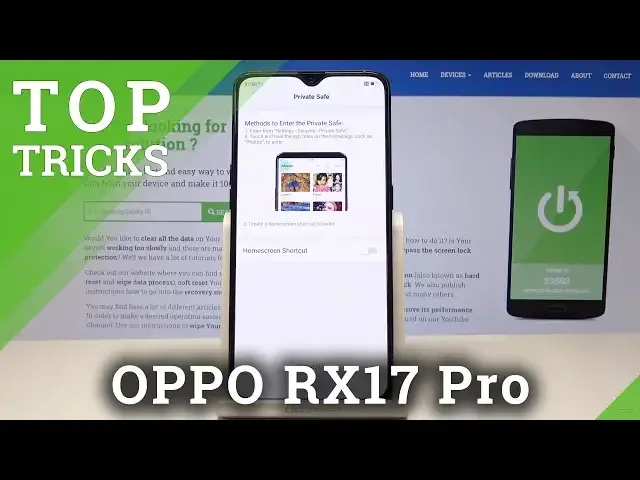
Let's go for the second trick, so let me show you the private space, let's go back here
0:52
from the security, let's choose the private safe right here, you need to use the set
0:59
passcode option, let me do it, so let me use for example the following one, 123456, let
1:06
me use it, let's verify new passcode by inputting the second time the passcode, here you can
1:13
set the security question, alright let me tap done, you can use the home screen shortcut
1:23
if you would like to let me do it, let me add, tap done again, here you can use some
1:30
private safe photos and other stuff and you can also go back, so here now you should be
1:40
able to use the private space, here you've got the private safe right here, if you would
1:46
like to enter this safe let's use the secret code and now you can use the following private
1:54
safe files. Alright let's go back, now let me show you the three finger split screen, so all you
2:02
need to do is just use settings, here let's scroll down, choose here the app split screen
2:09
let's enable this feature right here and now you can split the screen if you would
2:13
like to swipe up with three fingers, that's it, so you can do it from every screen on
2:20
the phone and you can just swipe up with three fingers to use the following split view, if
2:25
you would like to quit the split view let's just do it again and now you can go back to
2:34
the normal view, so that's it, now let's go for the next trick, let me show you the
2:39
three fingers screenshot, so let's here use the following smart and convenient option
2:47
let's choose gesture and motions, let's enable three fingers screenshot and now if you swipe
2:54
down with three fingers you should be able to take a screenshot, you can also use long
3:00
screenshot if you would like to right here or you can send the screenshot, you can also
3:04
use other options for example you can raise to turn on the screen if you would like to
3:09
let me do it, let's go for the next trick and let me show you the navigation keys, from
3:16
the smart and convenient let's choose navigation keys, as you can see here you can use the
3:21
following layout, you can use virtual navigation keys, hidden feature or you can also use here
3:30
swipe up gesture navigation, here you've got the instructions but in my case let me use
3:35
the virtual key navigation, that's it, everything went well, thank you for watching, please
3:40
subscribe our channel and leave thumbs up under the video