0:00
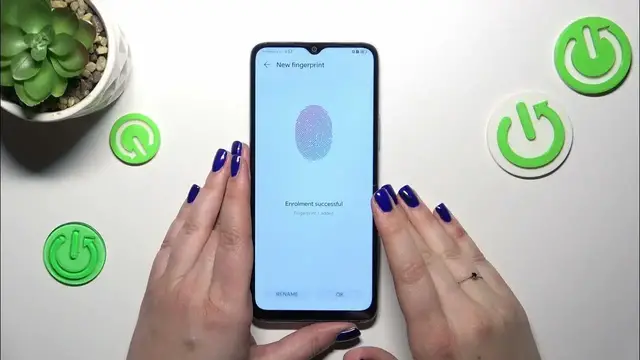
Hi everyone, in front of me I've got Honor X6A and let me share with you how to add the fingerprint to this device
0:11
So let's start with opening the settings and here we have to scroll to find the biometrics and password
0:20
Now let's tap on the fingerprint ID. And before we'll be able to set the fingerprint we have to add the regular lock screen
0:28
Of course if you've got one currently set you will be transferred to another step. If not we have to do it right now
0:34
So just choose the option you like the most. Let's set the screen lock and tap on done
0:45
Right here you can either tap on new fingerprint and you will be immediately transferred to the option where you can add the fingerprint
0:53
or you can decide for what you want to use the fingerprint for right now. So unlock device, access safe or access app lock safe
1:00
It's up to you which option you prefer. I will just tap on unlock device and I will be transferred to this section
1:07
So we have to place our finger on the sensor which is located on the power button of our device on the right side
1:13
So let me do it. So let me do it as I said
1:18
And right now we have to do it multiple times in order to add our fingerprint fully
1:25
So try to catch every corner, every part of it for better recognition of course
1:33
Okay now the edges. Okay
1:51
If you want you can rename the fingerprint right now or just tap on OK
1:56
I know. And here we've got some other options which are connected with the fingerprint
2:03
So for example unlock when screen is off. You can choose the method rest finger and press the button
2:09
And to be honest rest finger is much much easier and more comfortable because all you have to do is to put the finger on the sensor in the press
2:15
And you have to put it and also press the buttons. So it may be complicated in some situations but it's up to you of course
2:23
You can decide whether you want to feel the vibration whenever the fingerprint won't be recognized
2:29
Here we've got the fingerprint list. So as you can see you can add up to five different fingerprints
2:35
You can tap on the fingerprint, rename it or remove it. And also identify the fingerprint
2:40
So if you've got a lot of fingerprints added you can identify one of them just by putting it on the sensor
2:49
But let me log in the device and let's check if it is working actually. So let me put my finger on the sensor now
2:55
And as you can see the device is unblocked which simply means that we just successfully added the fingerprint to it
3:01
All right so that would be all. Thank you so much for watching. I hope that this video was helpful and if it was please hit the subscribe button
3:08
And leave the thumbs up