0:00
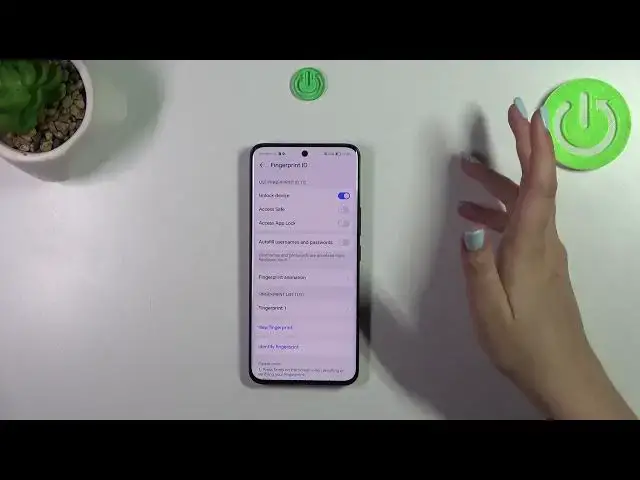
Hi everyone, in front of me I've got Honor 90 and let me share with you how to add the fingerprint to this device
0:12
So let's start with opening the settings and then find the biometrics and password
0:18
Now let's tap on fingerprint ID and before we will be able to add the fingerprint we have to set the screen lock
0:24
If you of course do not have one. If you've got one you will be directly transferred to another step
0:30
If not you really have to do it right now and not try not to forget but really not forget your pen because
0:38
thanks to this if for some reason the fingerprint sensor won't work then you will still be able to unlock your device
0:44
Of course you can set the pen, you can also change unlock methods, you can pick the password or the pattern
0:50
I will pick the pattern so let me redraw. I want to redraw because I want this full L
0:58
Okay, let's tap on done and right here we can decide for what we want to use the fingerprint for
1:04
No worries you can do it also after adding the fingerprint. So let's tap on new fingerprint and here we've got the instructions
1:12
We will have the sensor on the screen so just tap on add fingerprint
1:16
Here we've got the note about the fingerprint sensor which may be affected with the third-party screen protectors so just tap on OK
1:27
And here we have to place our finger on the sensor and right now let's do it multiple times in order to add our fingerprint fully
1:35
and try to catch every corner, every edge, every area for better recognition
1:46
Alright, we just successfully enrolled our fingerprint. You can rename it or simply leave it like this
2:02
Alright, here we've got the options connected with the fingerprint so we can decide whether you want to unlock the device
2:09
It is set by a default. Access safe, access, uplock, auto-fill the usernames and passwords
2:16
Here we've got also the fingerprint animation. You can change it, you can pick the option you like the most
2:23
As you can see you can simply swipe. Let me pick this one for example, confirm it with a confirmation mark
2:30
Let's go back and here we've got the fingerprint list. You can add up to five different fingerprints
2:37
You can also identify the fingerprint so it makes sense when you've got more than one fingerprint added
2:43
you can always put your finger on the sensor and your device will simply highlight the fingerprint
2:50
and you will be able to decide whether you want to remove it etc
2:54
Alright, let's lock the device and let's check if it is working
2:59
Here we've got it and as you can see the device is immediately unblocked
3:06
Alright, so that will be all. Thank you so much for watching. I hope that this video was helpful and if it was please hit the subscribe button and leave the thumbs up