Up next in 10

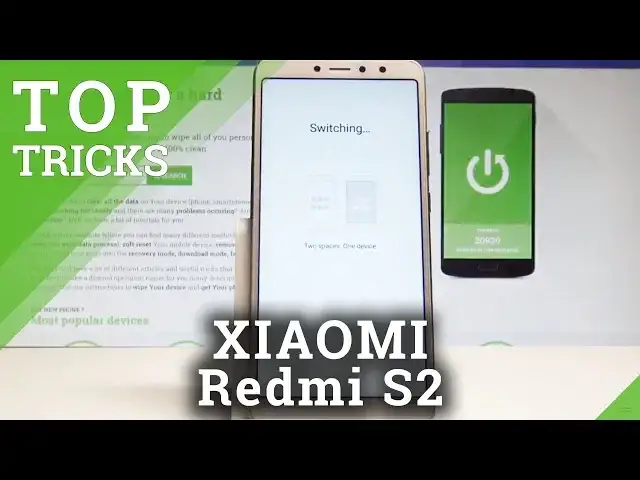
Top Tricks XIAOMI Redmi S2 - The Best Tips / Hidden Features / Helpful Settings
May 25, 2024

Let's bring using your XIAOMI Redmi S2 for the next level. Check out what useful thing you may do with your smartphone.
Tips and Tricks for XIAOMI Redmi S2. Let's explore top 5 coolest hidden features. Check out what secret settings you can use and how to find hidden options. Let's know your XIAOMI Redmi S2 better.
More Info:
https://www.hardreset.info/devices/xiaomi/xiaomi-redmi-s2/hardreset/first-method/
Show More Show Less View Video Transcript
0:00
Here I have Xiaomi Redmi S2 and let me show you top tricks for the following device
0:10
So at the very beginning let's start by the first trick, the really powerful app, the security
0:16
So let's open the security and here you can use a couple of useful things
0:19
For example you can use the cleaner and you can clean the junk files
0:23
Tap OK. The device is scanning the device. Here you've got the results
0:29
You can just clean up key right here. Alright there is no trash right now so let's go back
0:37
You can also optimize the device just by one clicking right here
0:49
Here you've got the results. Let's go back again. You can also use the security scan and make sure that your device is safe and you can
0:56
use the boost speed to speed up the device. Let me choose boost speed
1:02
So that's it. Let's go next and let me show you the second trick, the second space
1:08
So let's open the settings, scroll down and let's find and select the second space
1:18
It's located right here under system and device. This is really powerful thing, the separate space on your phone so you can keep some personal
1:26
files on your second space. Let's just choose turn on second space
1:30
The device is creating one. You can switch between two spaces if you would like to tap continue
1:38
You can set up the password or you can skip it for now
1:42
Here you've got the notifications that you can use and this is your second space
1:46
Here you can choose the different wallpaper. You can save some files or some apps on the second space
1:54
So this is like two phones in one. If you would like to go to first space, let's just use upper bar and choose go to first space
2:02
The device is switching and that's it. So now let's go next and let me show you the third trick, the quick ball
2:11
So let's find and select the additional settings. Here you need to choose quick ball and let's turn on the quick ball by using that key
2:22
So here you can select some shortcuts on the quick ball. Here we've got the quick ball of course at the right of the device and you can use the
2:32
following features, the following operation. For example, the screenshot. You can select the shortcuts that will be available on quick ball
2:42
Here we've got the all possibility that you can use. Let's go back
2:47
You can for example also hide automatically the quick ball in selected apps
2:52
You can set up this here and basically you can restore to defaults if you would like
2:58
to reset all settings connected with the quick ball. And if you would like to disable the quick ball, let's use the same switcher at the top
3:08
of the screen and that's it. So that's it. Let's go next
3:12
Let me show you the very powerful tools such as the screen recorder
3:16
So let's choose tools. If you choose screen recorder, you can start recording your screen
3:23
Let's just tap start and now you just record all steps on your device
3:31
If you would like to stop it, let's use this key right here and let's stop it
3:37
Okay, let's quit the screen recorder. Here we've got your video right here
3:47
You can edit, delete this video or you can just play it right here
3:52
Just allow Mi Video to access the records. Alright let's go back and let me also show you the second really powerful tool such as
4:04
the simple recorder. Let me show you. Here you've got the screen recorder and here you should find the simple recorder as you
4:17
can see right here. So you can now record also the voice by using this recorder
4:24
And at the end of the video let me show you the last trick. So let me show you the advanced scanner right here
4:31
Tap scanner and as you can see here you can scan the QR code, you can scan the business
4:36
card, you can scan the documents. So it's also really useful thing
4:42
So basically that's it. Thank you for watching. Please subscribe our channel, leave thumbs up under the video
Consumer Electronics
Car Electronics
Science
Gadgets & Portable Electronics
Intelligent Personal Assistants