0:00
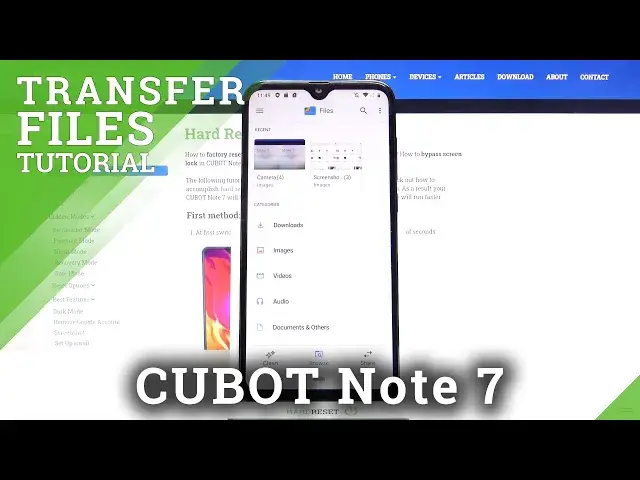
Welcome! In front of me I have Cubot Note 7 and I'm gonna show you how to transfer the
0:10
files from the internal storage to SD card and other way around. First we need
0:15
to open the file manager. To do it let's swipe up on this home button right here
0:20
twice, once and twice like this and then tap on the files to open the file
0:26
manager. Now let's find the files we want to move so for example let's scroll down
0:33
select internal storage. Here I'm gonna open for example DCIM folder and then
0:39
camera. As you can see I have one, two, three, four files and I can move them to
0:46
SD card. To do it simply select one or multiple by pressing and holding on one
0:53
to enter the selecting mode and now you can select one, multiple, depends how many
0:57
you want to move. Then press on this icon right here, the more options
1:03
icon and select option called move to. Then select the SD card as you can see on the list right here and here you can
1:16
select the folder you want to move your files into. You can also tap on more
1:20
options icon. You don't need to, you can tap right here at the top on the add new
1:25
folder to create a new folder. I'm just gonna find the folder called pictures
1:29
open it and here I'm gonna tap on move here button to move my files. We need to
1:37
also allow the permission for file access and after a few seconds our files
1:44
are gonna be moved. So as you can see they disappeared from the DCIM and
1:49
camera folder. Let's go back to home screen in this app, tap on SD card, scroll
1:56
down, tap on pictures and here we have our files. We can also move them back
2:02
into the internal storage. So I'm gonna select two this time, two files
2:06
like this and tap on more options icon, select move to, select the internal
2:12
storage. Now find the folder you want to move the files into. I'm gonna open the
2:18
DCIM and camera and then tap move here to move my files like that. And if I go
2:26
back to home of files, open the internal storage, tap on DCIM, then camera. Here I
2:34
have my files. You can also open for example images and as you can see here
2:44
we have all the images and two of them have this SD card icon next to the file
2:49
size that means that the files are on the SD card. That's how you can tell which
2:54
files are on in the internal storage and which files are on the SD card. Okay and
3:00
that should be all. That's how you move the files from the internal storage to SD card and other way around. Thank you for watching. If you found this video
3:08
helpful please consider subscribing to our channel and leaving the like on the video