0:00
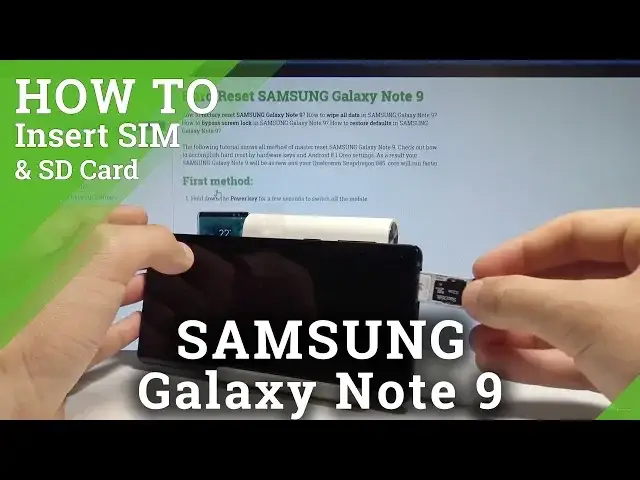
Here I have Samsung Galaxy Note 9 and let me show you how to insert here the nano SIM
0:10
and microSD card. So at the very beginning let's start by pressing the power key, let's choose power off and
0:16
touch power off again. Wait until your phone will be completely switched off and then let's locate the slot
0:23
The slot is located right here at the upper part of your device at the top edge
0:28
Here you need to open this slot by using some special eject tool or just the simple thumb attack
0:34
Here I have the thumb attack, let's just press it right here
0:38
Now you can remove the whole thing from your device. So let me do it
0:43
And here you can insert the nano SIM and microSD card. So let me use at first the microSD
0:49
So here you can insert the microSD but you may also here insert the nano SIM card so
0:55
you have to decide that you would like to use this slot for the SIM or for the SD card
1:00
In my case let me use the memory card. Let's place it right here
1:04
Now let's also insert the nano SIM. Here I have such a card with the characteristic edge right here and let's put this card in
1:11
that position. Alright, now you are ready to put the whole thing into your device
1:16
Let's just press it to the end and now switch on the Samsung Galaxy Note 9 just to make
1:24
sure that both cards works properly. As you can see the phone is turning on so let's wait a couple of seconds
1:35
Excellent, now let's unlock the device. And now you can open the settings
1:45
Here let's open connections. Then choose SIM card manager. As you can see the device is using one SIM card so it's a good sign
1:54
Now let's go back, choose here device maintenance, choose storage. As you can see the phone is using also the SD card so everything went well, both cards
2:07
works properly. Thank you for watching, please subscribe our channel, leave thumbs up under the video