0:00
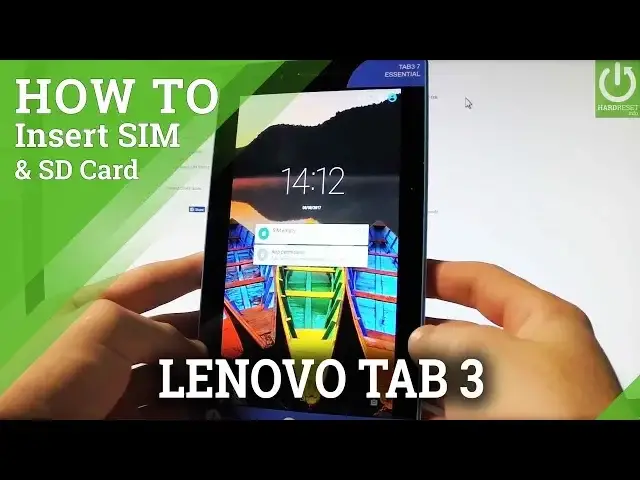
Here I have Lenovo Tab 3 and let me show you how to insert here micro SIM and micro SD card
0:11
So at the very beginning let me hold down power key for a few seconds. Let's choose power off and tap OK to confirm the whole operation
0:18
Wait until your device will be completely switched off and afterwards let's remove
0:25
the protection right here. Let me remove the following protection and here you should insert micro SD and micro
0:33
SIM card. So let me start by using a micro SD card
0:37
Here I have my card with the characteristic edge right here and let me put this card in
0:42
that position. Let's press it to the end. Let's insert also micro SIM with the characteristic edge right here and let's put this card as
0:51
simple as that. Let's press it also to the end, make me close the protection and then let's press power
0:59
key just to switch on the tablet and make sure that both cards are working properly
1:08
The Lenovo Tab 3 is turning on
1:18
Then let's unlock the screen. Next tap apps icon, find and select the settings and let me choose the storage
1:30
It's under device tab. As you can see the device is reading our SD card, so our memory card
1:38
You may also observe right here that the device is connected to one of the mobile network
1:42
so it means that both cards are working perfectly. So thank you for watching
1:46
Please subscribe our channel and leave thumbs up under the video