0:00
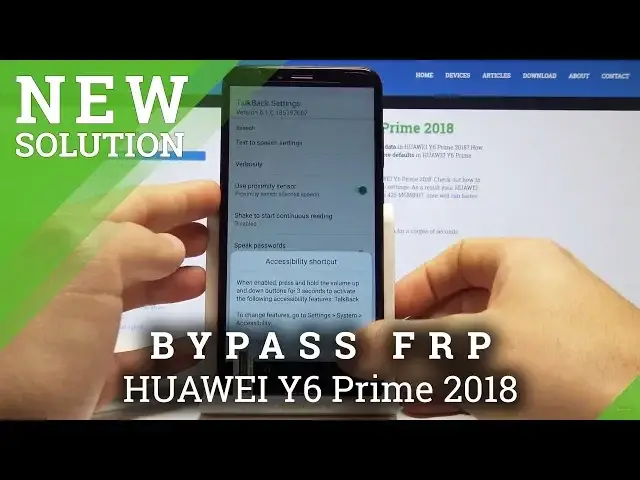
Here I have Huawei Y6 Prime and let me show you how to bypass Google��
0:13
on the following device so let me show you how to unlock RFP how to remove the factory reset
0:18
protection on the following phone. So at the very beginning let's start by pressing the power key and here let's simply
0:26
tap restart and touch restart again just to confirm the operation. Let's wait until your device will show you the welcome panel
0:34
Alright the welcome panel pops up so now we need to hold down two fingers somewhere on the screen just to enable talk back
0:51
Keep holding two fingers. Talkback is enabled
1:02
Let's write L on the screen. Simply write L. Tap talkback settings
1:10
Double tap to confirm it. You need to just You need to just choose options by tapping
1:22
once and then double tap to confirm it. So here you need to start using the volume down and volume up together
1:28
Let me show you, keep holding both keys. Volume down and volume up
1:35
Tap okay. Top back settings. Let's hold down again, volume down and volume up simultaneously
1:46
Talkback is disabled, so that's what we need. Now let's scroll down to choose here help and feedback
1:54
Let's choose Get Start with voice access. So here you need to play this video, let me do it
2:07
And let use this arrow Tap more Choose not now right here so here let choose the share button right here
2:25
select here note pad and from the note pad And from the note pad, let's tap accept button to create the node
2:40
And now you need to tap on the node that you just create right here
2:56
Just to open this note so let me do it. Let me just quit the following sharing
3:06
Let me just open this note right here. Now let's use here Share
3:12
So here let's tap Cancel again. Let me tap Share and choose as text
3:18
Let's choose Gmail. So we need to open the following Gmail app
3:23
From the following options you need to find and select. Let's keep a button right here
3:41
Sorry, let's go back again. Here let's find the share button. Let's choose as text
3:50
Let's here hold down the Gmail for a few seconds until the app info pops up
3:55
From app info let's choose here notifications. And when you have notifications open let's choose more settings
4:04
From more settings let's find and select the manage accounts. So let's choose here more menu and choose manage accounts
4:17
From the following options let tap just once to accounts Now you can use the list of settings so let scroll down right here to choose the system select here reset and choose Reset all settings
4:33
Tap Reset all settings twice to confirm it and let's wait a few seconds
4:37
Alright, when reset setting is completed, you can go back
4:50
twice just to open the list of all settings. Choose here display
4:57
From the display let's choose the home screen style. Let's choose drawer right here
5:04
Wait a few seconds. As you can see now you can use the home screen
5:11
So let's here wait until the following settings pops up. Let's choose here settings
5:20
Scroll down, choose system, tap about phone, let's here tap a couple of times on build number
5:33
You are now a developer, you can go back and here you can choose developer options
5:38
Here let's enable OEM unlocking right here, tap enable and now you can go back to choose here
5:45
reset options, select factory data reset and tap reset phone. Confirm the operation by choosing reset phone again and let's just wait a couple of seconds until you will be able to use your device
6:12
Reset successful so the device is restarting. Alright, the WorldCampal pops up, so now let me just quickly start activating this device
7:16
Let me skip inserting SIM cards. Let me tap a group terms and conditions
7:22
Let me just use the default settings. Let me leave everything to set up later
7:29
Here let me also skip the Wi-Fi connection. If you can skip the Wi-Fi, so it's a good sign, it means that probably
7:36
you just erase the FRP protection. So let's here tap setup as a new in my case
7:44
Tap skip to data transfer. Choose not now
7:59
Skip the device protection. Choose get started. And that's it, the home screen pops up
8:06
Now let me just show you the system on this device to show you on which phone I just accomplished the FRP unlocking
8:15
So let me choose here settings. Scroll down, choose here system, tap about phone and as you can see here you've got the Android version 8.0 and security patch level
8:31
It's from August 2018. went well thank you for watching please subscribe our channel live from