Find out more info about POCO C40:
https://www.hardreset.info/devices/poco/poco-c40/tutorials/
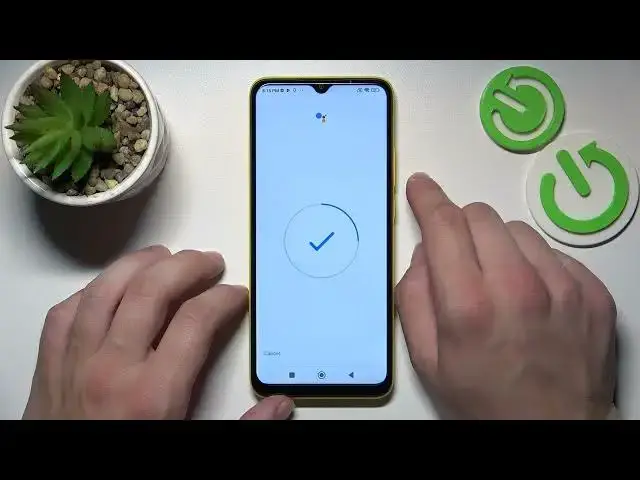
Hi! If you want to use your Google Assistant on lock screen in POCO C40 then watch this tutorial. Our expert will show you how to enter the Google Assistant settings, then how to activate the Hey Google options, and then how to allow Google Assistant to respond on the lock screen. Visit our YouTube channel if you want to learn more about POCO C40 and Google Assistant.
How to use Google Assistant on lock screen in POCO C40? How to activate Google Assistant on lock screen in POCO C40? How to turn on Hey Google of Google Assistant in POCO C40?
#GoogleAssistant #UseGoogleAssistantOnLockScreen #POCOC40
Follow us on Instagram ► https://www.instagram.com/hardreset.info
Like us on Facebook ► https://www.facebook.com/hardresetinfo/
Tweet us on Twitter ► https://twitter.com/HardResetI
Support us on TikTok ► https://www.tiktok.com/@hardreset.info
Use Reset Guides for many popular Apps ► https://www.hardreset.info/apps/apps/
Witajcie, przed sobą mam Poco C40. W tym filmie pokażę wam jak używać Google Assistant na lock screen
0:08
W początku idziemy do Google App. Kliknij przycisk więcej i idź do ustawień. Włącz Google Assistant
0:20
Włącz Voice Match i włącz Hey Google. Kliknij następny przycisk
0:33
Zgadzaj i kontynuuj. Teraz spróbujmy. Hej Google. OK Google. Czasami trzeba odetnąć model głosu
0:46
OK Google. OK Google. OK Google. OK Google. OK Google. OK Google. OK Google. OK Google. OK Google. OK Google. OK Google. OK Google. OK Google. OK Google. OK Google. OK Google. OK Google. OK Google. OK Google. OK Google. OK Google. OK Google. OK Google. OK Google. OK Google. OK Google. OK Google. OK Google. OK Google. OK Google. OK Google. OK Google. OK Google. OK Google. OK Google. OK Google. OK Google. OK Google. OK Google. OK Google. OK Google. OK Google. OK Google. OK Google. OK Google. OK Google. OK Google. OK Google. OK Google. OK Google. OK Google. OK Google. OK Google. OK Google. OK Google. OK Google. OK Google. OK Google. OK Google. OK Google. OK Google. OK Google. OK Google. OK Google. OK Google. OK Google. OK Google. OK Google. OK Google. OK Google. OK Google. OK Google. OK Google. OK Google. OK
1:16
Google. OK Google. OK Google. OK Google. OK Google. OK Google. OK Google. OK Google. OK Google
1:23
OK Google. OK Google. OK Google. OK Google. OK Google. OK Google. OK Google. OK Google. OK Google
1:30
OK Google. OK Google. OK Google. OK Google. OK Google. OK Google. OK Google. OK Google. OK Google. OK Google. OK Google. OK Google. OK Google. OK Google. OK Google. OK Google. OK Google. OK Google. OK Google. OK Google. OK Google. OK Google. OK Google. OK Google. OK Google. OK Google. OK Google. OK Google. OK Google. OK Google. OK Google. OK Google. OK Google. OK Google. OK Google. OK Google. OK Google. OK Google. OK Google. OK Google. OK Google. OK Google. OK Google. OK Google. OK Google. OK Google. OK Google. OK Google. OK Google. OK Google. OK Google. OK Google. OK Google. OK Google. OK Google. OK Google. OK Google. OK Google. OK Google. OK Google. OK Google. OK Google. OK Google. OK Google. OK Google. OK Google. OK Google. OK Google. OK Google. OK Google. OK Google. OK Google. OK Google. OK