0:00
Welcome, in front of me is a Lenovo Tab 2 A10 and today I'll show you how to enable
0:13
and also set up the Do Not Disturb mode. Now to get started, let's pull down the notification panel, expand it, and in here we should see
0:21
the toggle somewhere. So it looks like it's right over here. So once you find it, you want to hold it
0:26
This will take us to the settings where we can customize it a little bit
0:31
So starting off we have the priority only allows, let's tap on it, and in here we have
0:36
reminders, events, so we can basically select if we want those or not to show up while the
0:41
Do Not Disturb mode is enabled. And then we also have messages, this will either block or allow messages depending who
0:48
you have selected. So we have option from anyone, contacts, favorites, or none, which would be, well, no one
0:55
So select whichever one you want. And from there you can go back and we have also automatic rules, which this is just a
1:05
basically automatic Do Not Disturb mode, so if you want you can create your own or use
1:11
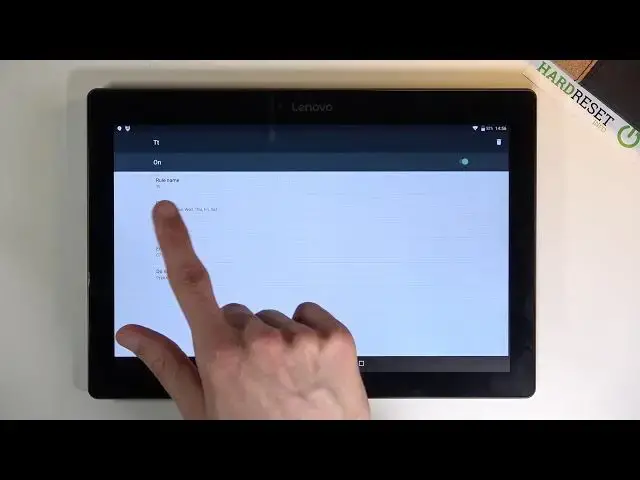
the ones that are already preset. So from here let's just name it whatever
1:18
And as you can see, here we have days of the week, so you can tap which days you want it
1:22
to turn on. Right now it's basically all week long. Then we have start time, so you can set it to start at whatever time you want
1:30
Then end time. Oops. End time. Again, set whatever time you want
1:37
And then Do Not Disturb, here we have the option to choose between a couple different modes
1:42
We have priority, alarm, or total silence. Now priority is the only one that we actually have ability to customize
1:48
Well, alarms and total silence are basically already preset and we have no option to change
1:52
how they function exactly. So I'm just going to go to priority only
1:56
And once you select it, you can go back and you can already see that because it does fall
2:01
under the time that Do Not Disturb mode should be active, it already is active
2:05
If I pull down the notification, you can see that it's already turned on, even though I
2:09
haven't really turned it on myself yet. It is due to the schedule being on right now and I believe it should be visible
2:17
It's not visible here. But yeah, that is basically how you turn it on with the automatic way
2:25
And in this way, it's just going to keep itself on till I think I select it to be till 8pm
2:31
So at 8pm, it's just going to disable itself. You can still disable it yourself by simply tapping on a toggle or enable it manually
2:39
again, by tapping on a toggle. And when you do, it gives you a couple different options when you tap on it
2:44
So you can have total silence, alarm, or priority. And then when you choose one of them, you also have the option to until you turn it
2:50
off or for a specific amount of hours that you can set yourself
2:54
And from there, you can tap on done and this will automatically then enable it
2:59
So that is how you use the Do Not Disturb mode. And if you found this video helpful, don't forget to hit like, subscribe, and thanks