0:00
Hi everyone, here we've got Samsung Galaxy S21 and let me share with you how to update
0:11
apps on this device. So firstly make sure that you've got the internet connection and the best option is to connect
0:18
using the Wi-Fi because if you will have your mobile data turned on and you will download
0:23
something then your mobile operator may charge you for the downloading and for the usage
0:29
some extra usage of the mobile data. I hope that you can understand what I'm trying to tell you
0:36
So just focus on it that you have to have internet connection and then we can enter
0:41
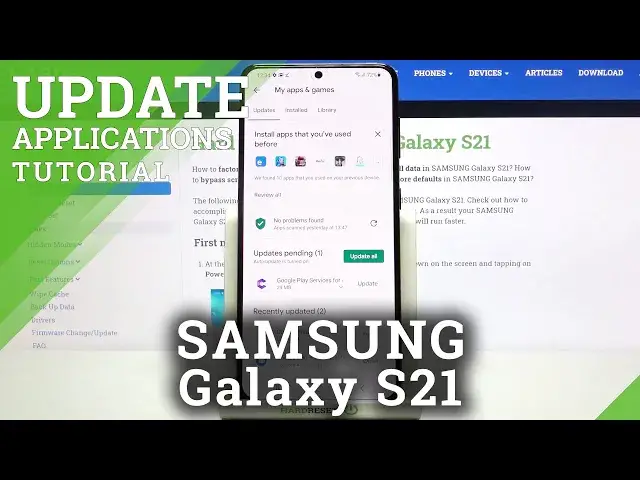
the Play Store. So let's tap on it. Now all we have to do is simply tap on this three bars icon in the left upper corner and
0:49
tap on my apps and games. And as you can see here we will have the full list of all updates pending and if you have
0:57
updated any of apps then they will appear in the recently updated
1:03
If you will have much much more apps to update you will be able to update all of them with
1:09
only one click just by tapping on this green button update all
1:15
But if you'd like to choose only one or two of them in order to update them then just
1:20
find them in the list and tap on update right next to it. So let me tap on update
1:26
And as you can see now it is downloading and after that it will be successfully installed
1:31
and automatically updated. So actually that's all. This is how to update apps in your Samsung Galaxy S21
1:38
Thank you so much for watching. I hope that this video was helpful and if it was please hit the subscribe button and