0:00
Hi everyone, here we've got Poco F3 and let me share with you how to change the ringtone
0:11
on this device. So first of all we have to enter the settings and now let's find the sound and vibration section
0:19
Let's tap on it. As you can see at the very top of the whole list we've got the ringtone section actually
0:24
and we can change the ringtone for calls and this is the very first option here
0:29
What's more we can change it for the alarms, events or notifications
0:32
So let me show you how to do it using the ringtone for incoming calls for example
0:37
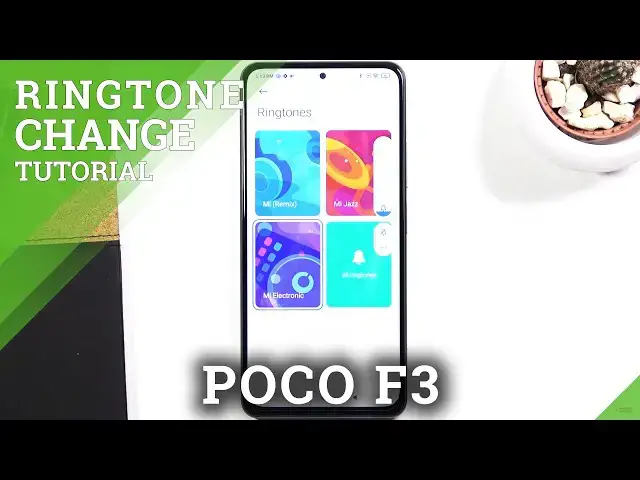
Let's tap on it and as you can see here we've got four different options actually to choose from
0:42
First three are the highlighted ones so they are chosen from the all ringtones list and
0:47
they are just set here. If you'd like to listen them just tap on it you will be able to check how it actually
0:55
sounds like. Ok, I got it. And if you are happy with your choice just get back
1:01
If not you can enter the whole ringtone list just by tapping on all ringtones
1:06
Let's tap on it. And as you can see here we've got the full list of all available ringtones which are
1:12
definitely installed on this device. So quite a lot of options to choose from
1:16
Here we can also choose local ringtone so here we will be able to pick something from
1:21
the files which we've downloaded and saved on our device. And here we've got some online ringtones
1:27
What's more we've got the option to don't set ringtone at all so your device actually
1:32
won't notificate you about any incoming calls. So I'm not really sure if it is the best idea to choose this option
1:38
So ok, so let's focus on the system ringtones for example and in order to listen how the
1:44
particular one sounds simply tap on it. So for example on this ice latte
1:49
And if you are happy with your choice all you have to do is simply make sure that this
1:54
option is marked like here it is highlighted and it's got blue color and then you can go back
2:01
As you can see it is notificated right here that you've just chosen the ice latte in my
2:06
case and after getting back to the sound and vibration section you can see that the ice
2:10
latte has been chosen so it means that from now on your device will use the chosen ringtone
2:16
Similarly it will work the same with all other options so I mean with the alarms, notifications
2:22
and events. Just tap on it. Here you've got actually more options highlighted
2:27
Here you've got all ringtones, the same situation. Just tap on it in order to listen
2:32
If you are happy just go back and it is automatically set
2:36
So actually that's all. This is how to change the ringtone in your Poco F3
2:42
Thank you so much for watching. I hope that this video was helpful and if it was please hit the subscribe button and