0:00
Hi everyone, in front of me I've got one plus 11 and let me share with you how to change the wallpaper on this device
0:09
So first of all, we have to enter the settings and now let's scroll until you will find wallpapers and style
0:15
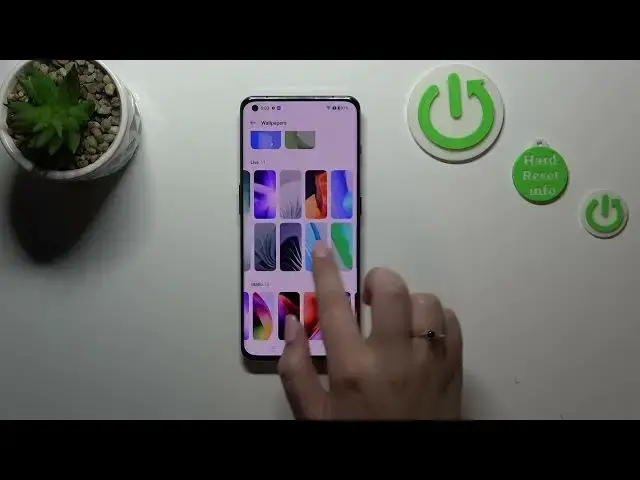
As you can see right here, we've got the section with the wallpaper So let's tap on it and here we've got some albums from which we can choose the wallpaper from
0:23
So we can pick it from our own photos so we can simply enter our albums here
0:28
Here we can enter some kind of inventive wallpapers Which simply means that you can take a photo or pick something from the gallery and then transform it to a wallpaper
0:38
Here you've got some live wallpapers. So they are animated ones and here we've got the static wallpapers
0:44
We've got the difference in setting those wallpapers. I'll show you in a second
0:49
So let me show you on the static ones For example this one after tapping on it
0:53
You can of course see it on the full screen and after tapping on apply
0:57
You've got three different options from which we can choose so we can set it as a lock screen home screen or both and
1:03
In the animated options, let me pick it and let me show you show it to you
1:08
For example this one you will have only two different options so you can set it on the home screen or both
1:14
So the home and lock screens, so it's up to you Of course If you want the animated option or the static wallpaper
1:20
I will stick with this option and simply set it on both a home and lock screens
1:25
Now we can go back and as you can see the wallpaper has been applied successfully
1:29
We can also check the lock screen. And as you can see the lock screen has also the same wallpaper
1:35
So basically, that's all this is how to change the wallpaper in your one plus 11. Thank you so much for watching
1:42
I hope that this video was helpful. And if it was please hit the subscribe button and leave the thumbs up
1:50
And I will see you in the next video. Bye