0:00
Hi, welcome to Hard Reset Info channel
0:10
This is the Huawei P50 and now I want to show you how to set up the parental control on your child's device
0:19
At the very beginning you need to open app gallery. Then just search and here you need to find kids log application
0:29
So type keys, lock. Open control screen time application and choose install
0:41
Wait a while. Fine now choose open button, wait a while and then you need to
0:57
who's phone is it parents or child's in my case I will choose child's phone and do
1:06
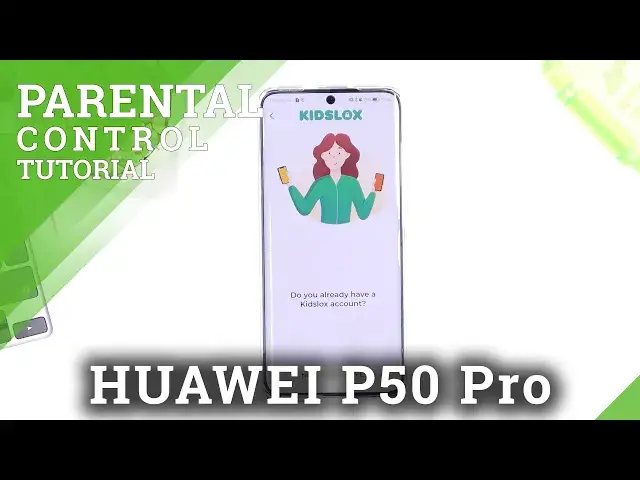
already have a kids logs count if you have you need to press yes if no
1:13
create the account choose a no button but I have kids logs count and I will
1:19
choose yes hello kids logs to take photos on record Okay allow but I don want to scan any QR code
1:35
Okay, then choose Child's Phone and choose No if you have an account
1:39
And choose already have an account and choose login in. Here you need to login to your KidsLogs account
1:46
So I'm login in my account, Hard Reset in for one. and type your password
2:05
Then choose login and set up supervising this device. So create name for child's, so type your child's name, Hardy 1, and enter your child's age
2:26
for example, nine years. Choose the icon for child and choose next step
2:35
The setup process may be technical tricky. Okay, just got it, let's go
2:41
and activate a kid log like as administrator to childs can be able to remove this application So just activate let do it scroll down find your keys logs and choose enable button set up accessibility scroll down use installed
3:11
services, choose key slots, and tap enable button. Okay, okay, let's do it
3:22
scroll down again just keys logs enable button got it keys locks enable button hello and activate
3:34
so choose okay button hello hello and let's go now choose permissions button choose all and now you need to
3:46
open all denied permissions and do with allowed permissions. So choose media and files permissions and choose allow access to
3:59
photos and videos only, location allow each allow only while in use or allow all the time
4:10
I will use allow all the time button and go back just got it and fine Here I have a hardy one device and now I can supervise this device I can lock applications block applications
4:32
For example I can block Snapchat. So now if kids want to open Snapchat, he will see this message
4:45
So if your child's... will want to open KidsLogs application. He can ask for more time, more screen time
4:58
He can see the rewards here, but he can't log into supervising
5:12
So if he wants to enter KidsLogs, kids logs he will see pin locks and he can't supervise his account it can do only
5:31
parents okay got it thank you for watching like this video subscribe our
5:40
channel and goodbye see you soon You know