0:00
Hi everyone! In front of me I've got Alcatel 3T10 4G and let me share with
0:06
you how to change the wallpaper on this device. So first of all let's enter the settings and here we have to enter the home
0:18
screen and wallpapers. As you can see we've got this section and directly
0:21
connected with them. Now let's tap on the wallpapers and here we've got three
0:26
different albums from which we can choose the wallpaper from so we can choose it from live wallpapers, from Google Photos which is basically your
0:33
own gallery or the wallpapers which are currently and defaultly installed on
0:38
this device. So let me pick something from those options and as you can see
0:42
after entering this album you will also be able to enter my photo so you don't
0:46
have to get back to the previous step if you will change your mind and if you will decide that you want to set your own photo as a wallpaper. We've got also
0:53
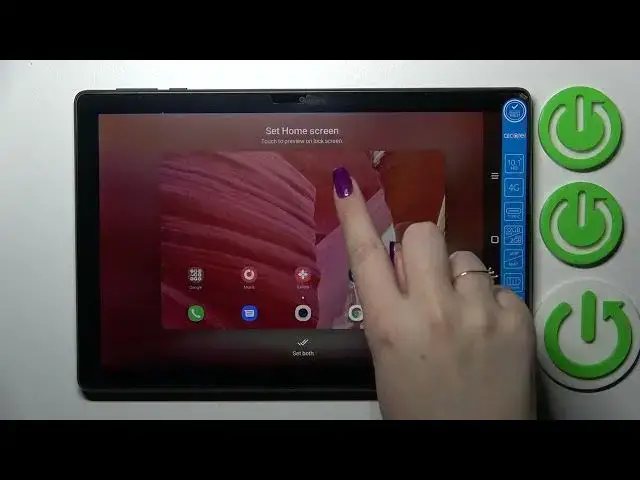
recently used and under it we've got like pre-installed, defaultly installed options from which we can choose and if you'd like to check the preview of it
1:02
simply tap on it and as you can see it will immediately appear right here
1:07
so you can check how it will look like on the home screen with all apps on it
1:12
After tapping on it you can check the lock screen. What's more and just by
1:16
swiping you can change the defaultly installed options so you don't have to
1:21
get back to the list of them you can just swipe. And basically if you're
1:26
happy with your choice you can either tap on done and it will be set only on
1:31
the home screen or after tapping on it on the lock screen or you can simply set
1:36
on both. And I will pick this option and as you can see the wallpaper has been
1:40
applied so we can go back and check and here we've got the wallpaper which has
1:44
been applied to the home page and also to the lock screen. Let's check and as you
1:49
can see we've got the lock screen. So basically that's all. This is how to
1:52
change the wallpaper in your Alcatel 3T10 and 4G. Thank you so much for
1:59
watching. I hope that this video was helpful and if it was please hit the
2:03
subscribe button and leave the thumbs up