0:00
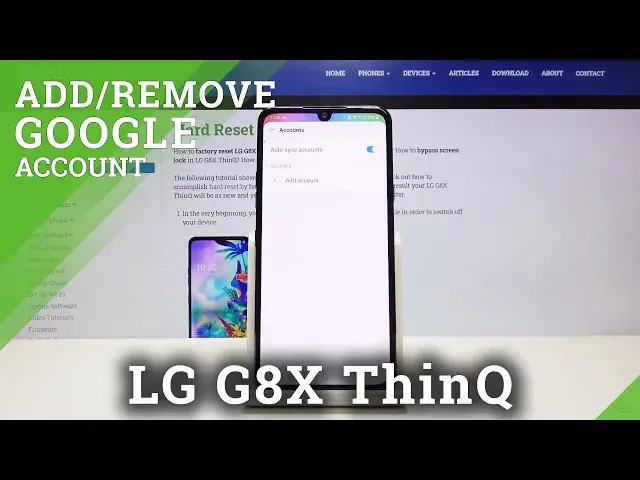
Hi everyone, here we've got LG G8X ThinQ and let me show you how to remove and then add
0:12
a Google account to this device. So first of all, let's open the settings, then let's scroll down and find accounts
0:19
And as you can see here, we've got previously added Google account. If you want to remove it, simply tap on it
0:25
Here we've got remove account, so tap on it again, click on remove
0:28
And as you can see, it immediately disappears. In order to add a new one, simply click on add account, choose Google, make sure that
0:38
you are connected with a Wi-Fi or any other internet source. And from this step, you can either create a new account if you do not have your own
0:45
or simply type your email or phone. So let me do this
0:49
Okay, after that, click on next. And here we have to enter your password
0:57
Let me do this out of the screen. Okay, click on next
1:09
Here we've got some Google terms of service and privacy policy. If you want, we can read them
1:15
Let's tap on it. Choose the one you want to read and here we've got all the info
1:20
Let's click on close and click on I agree. Here we've got the backup and storage info
1:26
Click on accept. And as you can see, we just successfully added a Google account to this device
1:33
So that's all. This is how to remove and then add a Google account to your LG G8x ThinQ
1:39
Thank you so much for watching. If you find that this video was helpful, please hit the subscribe button and click the thumbs up