0:30
Diagnostic mode, where you can check events and status. If you'd like to enroll more information, just tap on More icon and select Advanced view
0:40
And here it is. Now you can read some further details regarding your cat
0:45
This is it. That would be all for this FCM diagnostic mode. Let's go back then
0:50
Another code that you can use here is **.** as well. **.*
1:00
And here you've got the calendar info, so you can check all the events, all celebrations
1:05
any dates that you've got assigned in your calendar. And actually all the calendars, like Google calendar
1:10
iPhone calendar, and your device's internal storage. And from now on, you will definitely
1:15
not forget about any upcoming events. So smoothly enter this code and then check the events that you have
1:20
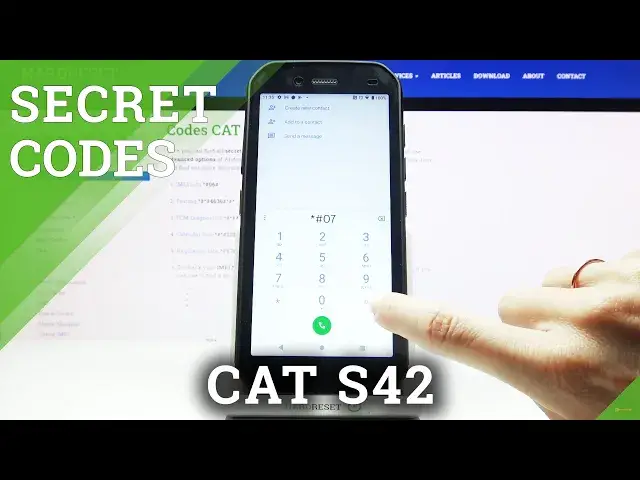
So this is it. We can go back now. And another code that you can use here is **.07
1:30
And here you've got the regulatory label, so you can smoothly check all the
1:35
labs that you have. So this is it. Here you can see the details
1:40
So let me go back right now. And a pretty similar code
1:45
is **.06. And this one will provide you with email number and also serial number assigned to your cat
1:55
So this is it. Click on OK to close it. And the last code that I would like to show you
2:00
it's the test mode performed by Google. To enter this panel, you need to
2:05
press **.4636. And as you can see here, you can reach phone information, user statistics
2:15
and also Wi-Fi details. When you click on phone info, you can smoothly
2:20
read email number, phone number, current network, signal strength, voice service, data
2:25
service, signal strength, and so on. Just scroll a bit lower. And here you can
2:30
perform a ping test. To do it, just click on Run Ping Test. And below, you've got the results
2:35
So that would be all for this one. Then under user statistics
2:40
you can check the time spent on your apps. And as you can see, for
2:45
example, settings being used for 22 and a half minute today. And the last time I used it was 1130 something. And this is it. That's how you
2:55
can check all the apps in your device. And finally, we've got also
3:00
Wi-Fi information. So if you want to check your network, just mark Wi-Fi info. And here you've got
3:05
Wi-Fi API, Wi-Fi configuration, and Wi-Fi status. So just click on Wi-Fi
3:10
API to check disabled network, disconnected networks, enabled network, configured networks, and get connection info. Then under Wi-Fi configuration
3:20
you'll be able to check all configured networks. And the last one is
3:25
Wi-Fi status. Just click on it. And when you tap on Refresh Stats, you'll be able
3:30
to read the current status of your network. And also a bit lower, you can perform a
3:35
ping test. So just click on Run Ping Test. And here it is. And actually, that would be all
3:40
These are all codes that you can use in your cat. Enjoy. Use them as only you need to, as often you want to
3:45
Thank you for watching. Please subscribe our channel and leave the thumbs up
3:55
And share this video with your friends. And have a nice day