0:00
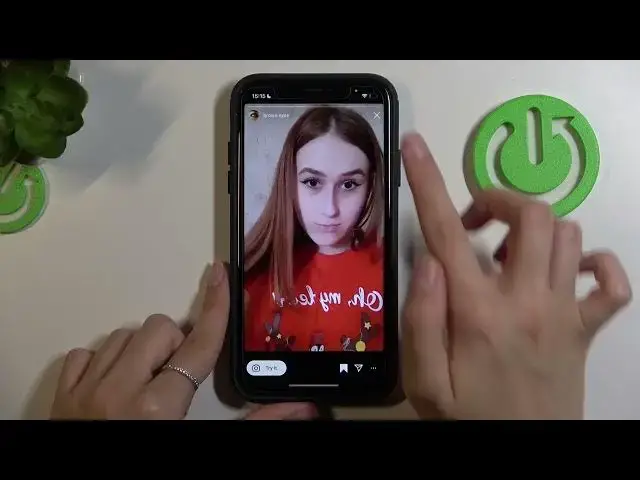
Hi guys and this is a new video about the Instagram application where we will show you how to add a new filter on your Instagram Stories and use it successfully
0:10
So let's go to the watching. Right now we are on the homepage on Instagram app and let's go to the new story Instagram Stories creator after swiping our homepage to the left side, to the right side. I'm sorry
0:28
Okay. So after. tapping on this white bottom, white central bottom we can create our new story but if you will
0:35
scroll the period line to the right or left side also, you can activate some additional filter
0:41
you like the most. Remember that if you don't have the saved filters, these filters are the most
0:47
popular which can be interesting for you as an example. If you want, you can activate them
0:54
successfully. And remember about the last option like search, which can help you to get a
0:59
access to the for-you page for the filters. In this way, you can activate some of the effects you like the most, which are popular to
1:08
Don't forget about the text bar at the top of the screen, which can help you to navigate
1:14
on this for-you page and find some filter you will be interested in, as an example
1:22
to find the topic of some filters, etc., like games. But you can also have the search filter
1:29
at the top bar, search filter, sorry, search option. After clicking on which, you can also set some tag, some tags
1:40
and the specific name of some filters, if you know. As an example brown eyes as you can see it our recent filter And after setting the needful tag here on the search bar you can find all of the possible filters with this tag
1:58
So if you want, as an example, the activated brown eyes, let's choose the first filter here on the list
2:05
I need to tap on it. And to add this effect to your story
2:09
you just need to pick on this bottom K, white K, try it
2:15
So right now you can smoothly use this filter after holding on this central bottom
2:22
Remember that if you like this filter as an example, and if you want to save it to use this filter later and as an example to not lose it
2:32
and if you don't want to search it for it every time
2:35
you just need to pick on this first bottom at the bottom of the screen to save this filter later
2:43
So right now this filter is. saved and activated, I will create some story with it. Okay, amazing. Let's tap on the arrow here to post our story. I will add it on my profile page and done. Okay, so let's check if this filter was definitely saved. I will refresh my home page and let's go to the stories creator after swiping our page to the
3:15
right side as before. So this saved filter need to be here. So let's refresh it again because we had
3:23
saved the selected filter and it definitely need to be here. Let's check it. If we have this brown
3:33
ice filter or not Okay it so interesting because I have added this filter but let use this filter as an example
3:46
Let's save it too. Okay, ah, yes, so sorry, it was some arrow and trouble with Instagram
3:53
Right now, as you can see, we have this brown ice filter in the saved catalog
3:58
It's some, some problems with the Instagram app. It can probably appear
4:04
So let's refresh our homepage again and right now I will show you from the start
4:11
So we are on the homepage, we need to swipe this page to the right side
4:16
and when we are on the central, I mean that we have our shooter button here
4:22
On the left side we will have the additional filters we can probably use
4:27
but on the left side we will have only the saved filters we liked
4:32
As you can see here, to unsave this filter, we need to tap on the save option again
4:37
And as you can see, it will appear on the left side of the shooter bottom
4:43
Yes, I will save it again and it will go to the right side
4:48
In this way, you can smoothly navigate on your filter list and activate them successfully
4:56
Also, if you will add some story, as you will, you will, add some story
5:02
as an example, you will record some story in the usual way without any filters
5:07
and you want to activate some filters later after the creator's shin, after the recording
5:13
You can also tap on the filters option, which is the fourth one on the top bar
5:20
and use possible filters later to after the scrolling appeared line Remember that you can probably have your safe filters here but I can say that Instagram usually change this line
5:38
and you can probably you don't have this 100
5:48
that you can find your needful filter. you just have an option to do it
5:57
So as an example, we have our state one and other filters we can successfully use for our newly created story
6:06
So I will choose our saved as an example. Let's press on the done to save changes
6:11
And right now, I can smoothly add this story to my profile pages before, after tapping on this arrow or after clicking on your story option here
6:23
Okay, so let's refresh our profile page and check the results. So we have our first story and this is our second one
6:34
Guys, right now I hope that you know how to search for the needful story on your Instagram account
6:40
and use this filter, sorry, and use these filters successfully and smoothly
6:47
This I hope that can help you to create some aesthetic, aesthetic
6:53
stories and stories you like. Guys, don't forget about likes. And don't forget to subscribe to this channel
6:59
because here we will create a new call videos about the Instagram
7:03
and different other apps, which can probably help you. So, guys, bye-bye