0:00
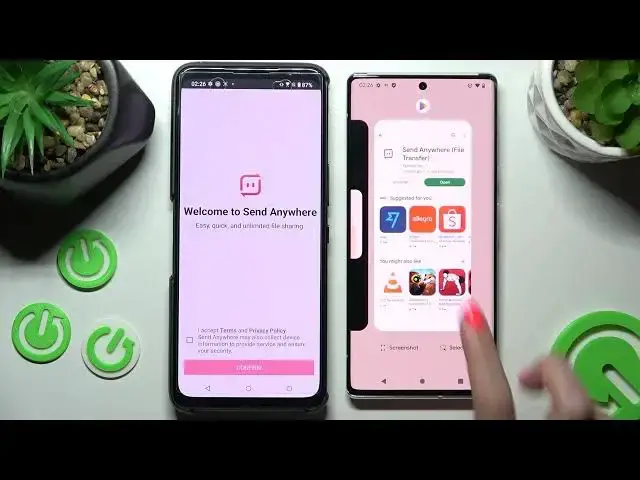
Hi! Today I would like to show you how you can transfer files from an Android device to Android 14
0:11
First of all, access Play Store on both smartphones and install free app called Send Anywhere
0:16
When it's ready, choose Open. If you cannot open your app, you need to go into Devices settings and choose Privacy section
0:25
From here, click on Permission Manager and tap on Camera. Then you need to scroll down and find Send Anywhere app
0:32
Click on it, choose See all Send Anywhere permissions, scroll down again and tap on Notifications section
0:39
Now you need to choose this grey switcher next to All Send Anywhere notifications and go back to your app
0:46
Now when I click on Open, it works! From here you need to choose I accept, confirm, continue and allow
0:54
Then do exactly the same on your Android 14. Now select Send on this Android smartphone and Receive on Android 14
1:05
Following that, choose all of those dots and finally click on Send
1:09
This way you will be able to select all of them and transfer them later on
1:13
It will take a long time to do it now, so I will go with only one photo, maybe that one
1:18
Choose Send and click on Got it. Now on Android 14 choose No Thanks and close this window
1:24
Finally, we have two connection ways. We can scan this QR code by clicking on this scanning icon, choosing While using the app or Only this time and pointing our camera at the code
1:35
But we can also input this key over here instead and tap on Receive button
1:41
Either way, after a couple of seconds... As you can see, my picture was successfully transferred
1:49
Thanks so much for watching! If you enjoyed this video, don't forget to leave a like, comment and definitely subscribe! Bye