0:00
Here I have Vivo Y91, let me show you top tricks on the following device
0:11
So at the very beginning let me start with S-Capture. Let's open the list that you would like to save
0:16
So in my case it could be the list of settings. Let's swipe up to open the down bar and here let's use S-Capture
0:23
So as you can see here you can record screen, you can use the rectangular screenshot, you
0:28
can use funny screenshot or long screenshot. In my case let me use long screenshot
0:33
Now let me tap next to save the whole screen and as you can see you just saved the whole
0:38
list of settings on one picture, all you have to do right now is tap save and this is your
0:43
screenshot as you can see really long one but really useful. Alright so that's it, let's go next to the next trick, let me show you the motorbike mode
0:51
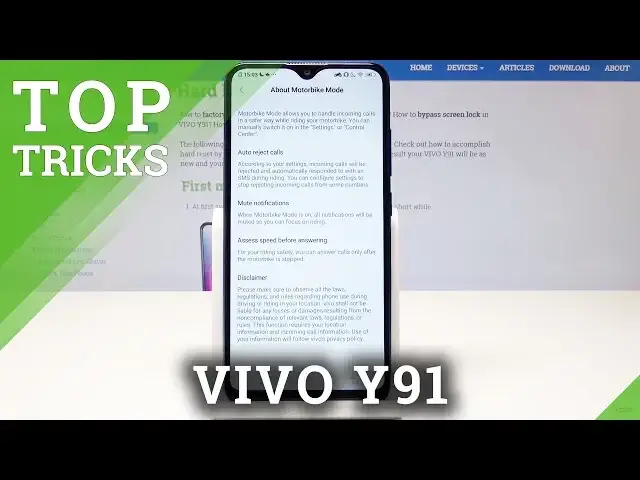
So here find and select motorbike mode and here you can enable this feature by using
0:58
the following switcher and you just enable the motorbike mode. Here you can reject all incoming calls but you can also use settings and for example
1:06
use auto reject calls. For example you can allow some calls, you can also here use auto repeat calls and you
1:16
can also use here the respond with text messages if you would like to and you can read more
1:22
about motorbike mode. So if you are using the motorbike it's really useful to use this mode, you can also tap
1:29
exit to quit this mode, tap ok to do it. Now let me show you the next trick, so let me show you the navigation gestures
1:35
Here let's choose system navigation and right now we are using the navigation keys but you
1:39
can choose to use navigation gestures and here for example you can go back by using
1:47
the following swiping from the right side. You can also go to the home screen by using the middle swiping and you can swipe and wait
1:58
and hold the device to open the following multitasking. So that's it, you can also use the following form of navigation
2:06
If you would like to go back let's just here find and select system navigation right here
2:13
and let me tap navigation keys. Alright that's it, let's go next and let me show you the smart wake, so let's go back
2:20
right here, scroll down and here you should find and select the smart motion right here
2:29
Choose smart wake and let's for example enable one of the following features
2:33
You can here slide upwards to unlock, you can draw C to launch the launcher or for example
2:37
draw E to launch the browser. Let me do it, now lock your device, let's draw E
2:45
That's it and the browser pops up. Really cool thing. Now let me show you the last trick, so one of the most powerful tool on this device
2:53
so let me show you the Ion Manager right here and as you can see here in Ion Manager you
2:58
can use one touch optimization right here. This is really useful to optimize the device
3:13
Alright tap back, you can also for example use virus scan. In my case everything looks good, so here you can also speed up the device, monitor
3:22
your data and just use some really useful features. Thank you for watching, please subscribe our channel and leave thumbs up under the video