0:00
Welcome and for now I'm using a Google Pixel 4 and today I will show you how to change
0:08
the wallpaper on the device. So to get started hold your finger on the screen and you will get the option right here
0:15
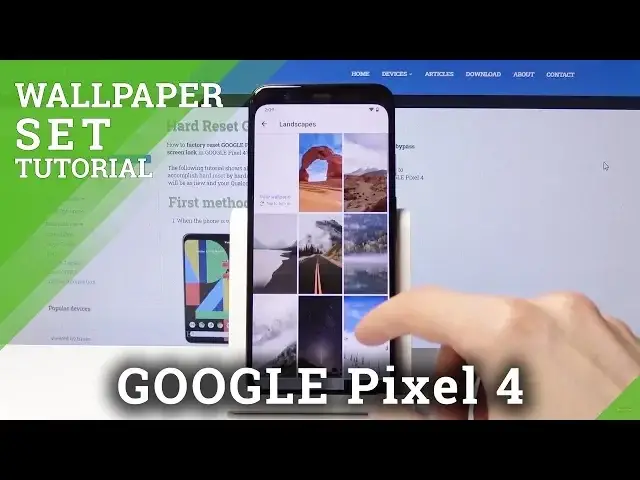
style and wallpaper. Tap on it and it opens up all the wallpapers that are preloaded on the device as you can
0:21
see and those are basically folders full of additional photos. So landscape you go there and you have way more photos in here and each one of them has
0:33
again just a plethora of other options right here. And you can also go into my photos where you will find, I'll just tap on allow, where you
0:41
find images that for instance you have downloaded from your browser or just from your computer
0:45
or just pictures that you have taken with the device which you can choose for this purpose
0:50
but I only have one that isn't necessarily big enough for this purpose so I'm just gonna
0:54
go back and go into landscape. So I'm just gonna select one, let's say like this one, looks good enough
1:03
So once you tap on it you can actually position it in a different place just by dragging it
1:09
over you can also zoom it in so you have a different feel of it like so
1:17
Also have a preview which just kind of removes everything from the display and from here
1:22
once you're satisfied with how it is positioned all you have to do is just tap on set as and
1:27
you get two options you can either set it as lock screen or home screen and lock screen
1:32
Not really sure why it doesn't give you another option for just the home screen but oh well
1:38
it is what it is so I'm just gonna choose the second one which sets it for both so home
1:43
screen and also lock screen as you can see. And yeah that is how you would change the wallpaper on the device
1:51
So if you found this very helpful don't forget to hit like, subscribe and thanks for watching