0:00
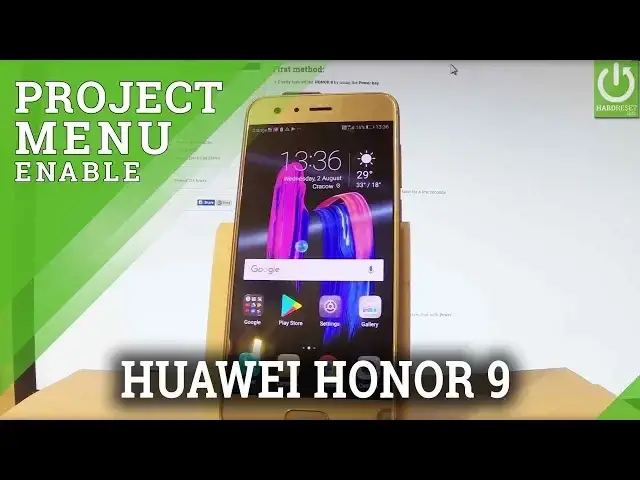
Here I have Honor 9 and let me show you how to enter project menu on the following phone
0:09
So at the very beginning let me start by using my home screen, afterwards let's tap phones
0:14
dialer dot icon right here and let's input the secret code. So we have to use star hash, star hash, two eight four six five seven nine hash star hash star
0:30
As you can see the project menu just pops up on the screen, here you can navigate by
0:35
tapping appropriate options. So let's choose the background settings at first, here you can select background debug
0:42
and you can change the background debug mode from open to close
0:46
You can also change the port settings and here you've got google mode, manufacture
0:51
mode or high speed mode, let me tap close. Lock settings where you can for example choose charge lock or sleep lock and you can also
1:01
set UI theme color if you would like to. Ok so let me go back and now let's open the new information and here you can find some
1:10
more detailed information about your phone. So let's tap on version info, the device's processing data and here you've got such things
1:18
as bootloader version, kernel version, you may also select a MUI solution version and
1:26
some other important and detailed information about your device. You can also choose manufacture info right here and here you've got some data about the
1:37
manufacture, let's go back. You may also choose other info, here you should find serial number, audio parameter, run mode
1:45
and other stuff. You may also select verify key right here and you should input right here password
1:53
Let's go back, let's choose network information query, here you should find such things as
1:59
simlock info for example, when you can change the status of your simlock, you can choose
2:05
fuse info and vendor country info. Let's go back. You may also select such things as software upgrade and you can try upgrade your software
2:16
by using your SD card. You may also accomplish here the hardest operation, it is the restore factory but you have to
2:23
be really careful with that operation because as you know this operation will erase all
2:28
your personal data and customize settings so if you would like to not do it, let's be
2:34
careful with restore factory and let's choose battery charge at the end and as you can see
2:40
here you can read the battery level and the battery temperature. Excellent, that's it, you can use your back arrow to close this window and you can use
2:50
your device. Thank you for watching, please subscribe our channel and leave thumbs up under the video