0:00
Hi everyone in front of me I've got Vivo S17 and let me share with you how to
0:05
add the photo to a contact in this device. Let's start with opening your contact list, find the contact you'd like to edit
0:15
and then tap on it. So let me pick maybe, well maybe just one Tim is okay. Of
0:22
course give all the permissions it needs and now let me quickly remove the photo
0:28
So basically all we have to do is to tap on this edit icon in the right upper corner and let me remove the photo. So this is where you will see after
0:37
entering the contact without any kind of photo assigned. So let's simply tap on
0:42
add photo and here we can either take a photo and then your device will open the
0:46
camera up. So this is the the best option to choose if you've got someone
0:50
right in front of you and if you're able to catch the photo immediately or you
0:55
can choose a photo from the gallery and I will pick this option so let me tap on it. Just choose the album, of course give all the permissions, find the photo
1:07
you'd like to use and tap again permissions, tap on OK. And here in this
1:14
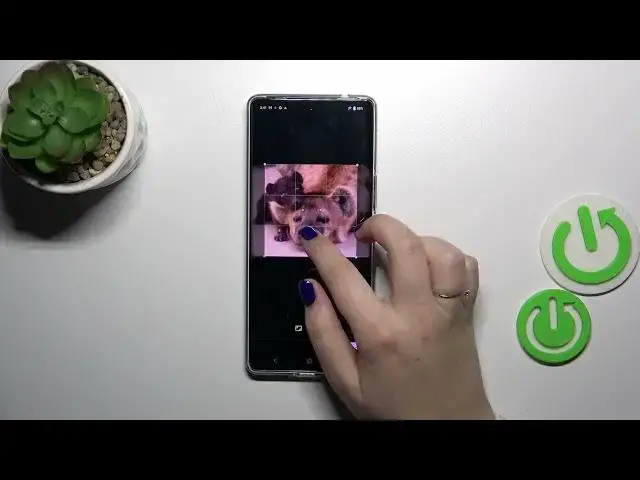
step you can change the position of the photo, you can zoom it in or out, you can
1:17
also change the size of this highlighted square and thanks to this you can decide
1:21
what you will see after saving the whole contact because basically this highlighted square is responsible for it. So position it just like you
1:29
want to and tap on save copy. And as you can see the photo has been immediately
1:33
applied and if you are happy with the results tap on save in the right upper
1:37
corner. And as you can see the photo and this is how our contact will look like
1:42
with the photo. You will be able to see it on the contact list and for example
1:47
during all incoming calls from that number. Alright so that will be all. Thank
1:52
you so much for watching. I hope that this video was helpful and if it was please hit the subscribe button and leave the thumbs up