0:00
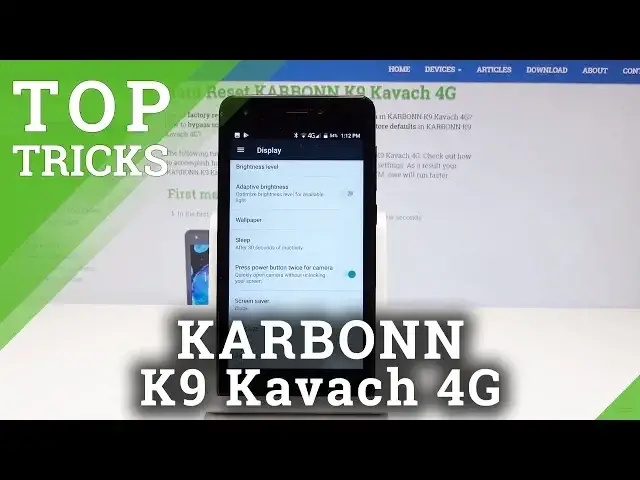
Here I have Carbon K9 Kapaak and let me show you how to use here top tricks on the following device
0:13
So at the very beginning let's unlock the screen right here. Then let's open the apps icon, find here and select the settings from the list of settings
0:24
you need to find and select the display right here. And here let's enable press power button twice for camera
0:33
This is really useful so you can quickly open the camera without unlocking your screen even
0:38
So if you lock your device and quickly press power key two times you will open the camera
0:44
As simple as that. Alright. Let's go for the next trick. Let me show you the DuraSpeed
0:51
Let's go back and here from settings let's scroll down to choose the DuraSpeed
0:58
It should be located right here under device tab. Let's tap it
1:04
And DuraSpeed helps foreground app boosting by restricting background apps. It could be really useful
1:10
You can boost your speed just by enabling this option. And here you've got some apps and these apps are allowed to run in the background but you
1:20
can disable this app. For example you can disable the messages to be in your background and you can also enable
1:29
a few apps or you can use more key and you can for example turn all on or turn all off
1:36
Let me do it. Let me turn all off. That's it. So I just disabled all of those apps
1:45
Alright let's go for the third trick. Let me show you the scheduled power on and off
1:50
So this is really simple but this is really useful also. Let's tap scheduled power on and off
1:55
So for example here by enabling this option you can switch on your device every day at
2:00
7 AM or for example you can also switch off your device for example every day at 8 PM
2:09
or something like that. You can set up your time right here
2:14
Tap OK. Tap OK. Here you've got the repeat days. Let me tap every day
2:23
Tap OK. Tap done. And that's it. Alright so let's go for the next trick
2:29
So let me show you the magnification feature. Let's just go back
2:33
Here under system let's choose accessibility. Scroll down and select here magnification gesture
2:40
Let's enable this feature and let's here triple tap to magnify things
2:45
That's it. If you would like to switch the position of magnification let's use two fingers and you
2:50
can do it. Alright let's triple tap to quit magnification and let's go for the last trick
2:57
So let me show you advanced color version color settings. Let's scroll down to the bottom of the list and here we've got the color inversion
3:05
So you can enable the color inversion by using this switcher. This is experimental mode but you can try to use it
3:11
You can also use the color correction right here. For example the red green or for example blue yellow
3:21
That's it. Everything went well. Thank you for watching. Please subscribe our channel and leave thumbs up under the video