0:00
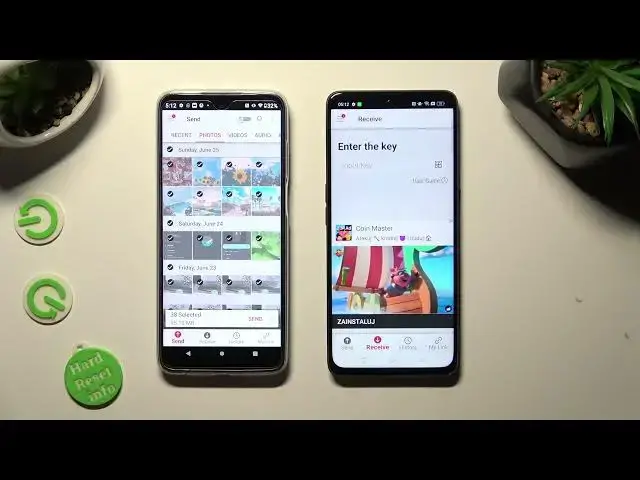
Hi! Today I would like to show you how you can transfer files from Motorola device to Oppo A1
0:16
Begin by accessing Play Store on Bow and downloading free app called Send Anywhere
0:25
It has to be from this developer. When your app is ready, open it
0:39
Now, in order to use it, do exactly the same on both devices
0:46
Begin by tapping on I Agree, then select Confirm, Continue
0:58
and Allow. Now on the second one. I Agree, Confirm
1:10
Continue, Allow. In this popup though, about new updates, you can tap on Not Now if you want to
1:23
Then close it by hitting OK. If you wish to send your files and receive them between nearby Android devices without an internet connection
1:39
click on this switcher at the top, above the popup. If you don't, just don't click on it
1:53
Finally, click on Send at the bottom left corner of Motorola, and receive right next to Send at the bottom of Oppo
2:06
Also on Oppo you need to scroll down and tap on the Best option for your ads
2:14
Yes I Agree or No Thanks. Then click on Close this window, and go back to Motorola
2:24
You can finally tap on all of those dots, from all of those categories
2:32
to choose files that you wish to transfer. You can also just click on the chosen ones
2:40
in my case this one photo. Wherever you decide, when you are finished
2:46
click on Send next to Selected located at the bottom of Motorola
2:54
Now hit Got it in Here's Some Tiff popup, and decide which connection way is better for you
3:04
If you want to connect by scanning this QR code, tap on the scanning icon next to Input Key on Oppo
3:14
Then allow camera access in the popup, and point your device's camera at the code
3:24
If you prefer to input this key though, click on Input Key section and type in all of those numbers in correct order
3:38
Last but not least, hit Receive to connect. So when I do that, as you can see
3:52
my photo was successfully sent. Thanks so much for watching, if you enjoyed this video
4:00
don't forget to leave a like, comment and subscribe. Bye