0:00
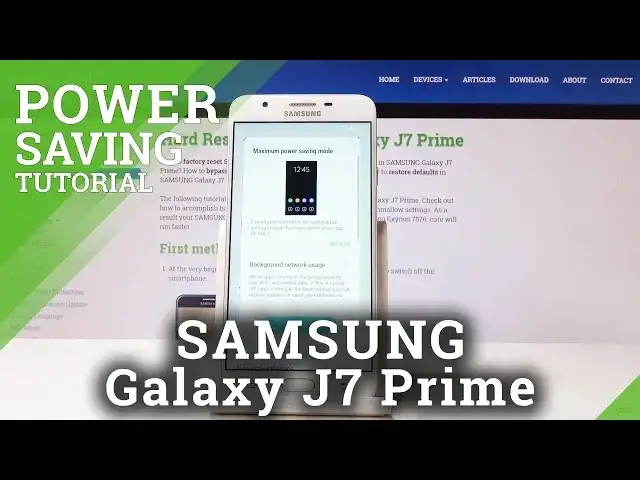
Here I've got Samsung Galaxy J7 Prime and let me show you how to activate power saving
0:10
mode on the following device. So at first let's go with the quickest method, simply slide down the upper bar and locate
0:17
power saving mode icon, simply click on it and from now on, if you will click on apply
0:22
it will be active. Give your device a couple of seconds and that's it
0:28
As you can see, medium power saving mode is on. You can also open it through the settings and then select some particular power saving
0:36
mode options. So let's open the list of all applications, go to the settings, then locate and pick device
0:48
maintenance and go to the battery. And now you can simply enable power saving mode here so it can be off
0:57
So let's switch it off. Then you can activate this medium option, which we have previously and also the maximum one
1:06
So click on max and this one will extend your battery life by applying the settings below
1:11
And here you've got the more information. So only some particular application will be allowed
1:16
If you truly want to do it, click on apply and wait a couple of seconds until it's done
1:23
This will decrease brightness, speed limiter, also limit numbers of usable apps and apply
1:28
dark dim. So just give it a while until the changes are applied
1:38
And that's it. As you can see, now we are in power saving mode. The maximum one, if you will open the settings, you will notice just a few of them
1:45
So then you can open the battery one more time and you can switch off this maximum power
1:51
saving mode by tapping on off or on middle one. But I will switch it off
1:56
Totally so. Just give your device a sec to go back to default settings
2:09
As you can see, it has been turned off and now we are back in the standard mode
2:12
So that's basically all. That's how you can save your battery in Samsung Galaxy J7 Prime
2:17
Thank you for watching. Please subscribe to our channel and leave the thumbs up