0:00
Welcome guys, so in this tutorial I want to show you how easy you can update your
0:05
graphic card's drivers on the Windows 11. Okay so the first we have to go at the bottom for our taskbar and we
0:17
have to click with the right mouse button on our start and then from this
0:21
list we have to select device manager. Okay there it is and the next step
0:28
that's very simple we have to find the display adapters. Click on it two times
0:33
with the left mouse button and as you can see in my case I'm using the AMD
0:37
Radeon RX 6600 XT so I have to click on it once with the left mouse button and
0:45
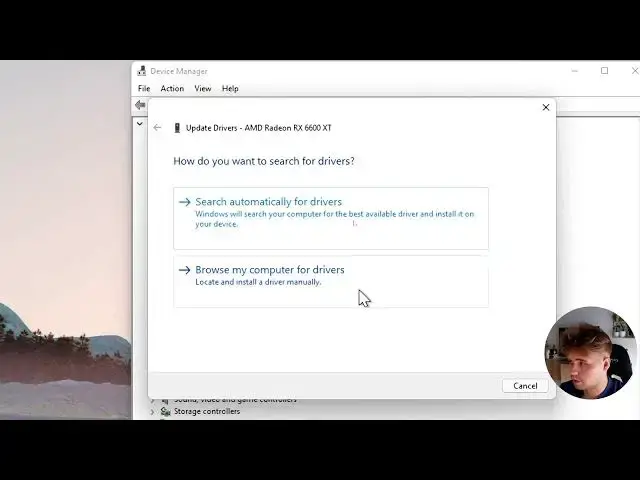
then click with the right mouse button and select option update the driver and
0:50
we'll get this window so we can browse our PC for drivers if you are
0:57
using from any external like for example the pen drive or the micro SD
1:04
card or something like that but you can also search them automatically so I'm
1:08
gonna pick this option of course you have to be connected to the internet
1:13
with the Wi-Fi network or the hotspot from your smartphone something like that
1:19
so select this option and as you can see after a few seconds that's the
1:24
information that the best drivers for your device are already installed so in
1:29
my case I don't have any any updates to install but in your case there will be
1:37
another button to download so we can just simply follow each step from this
1:42
simple menu and yeah that's how we can make it also you are able to update the
1:47
drivers by using this the software in my case I'm using the AMD graphic card
1:55
so that's the AMD software so we can open it just like that of course in the
1:59
Nvidia it looks a little bit different but yeah right here you are also able to
2:06
check the update as you can see right here you can check for the updates in
2:10
this place that's the driver software on the AMD on the Nvidia it looks very
2:18
close so yeah that's all for this video if you find it helpful just remember to
2:23
leave a like comment and of course subscribe to our Channel