0:00
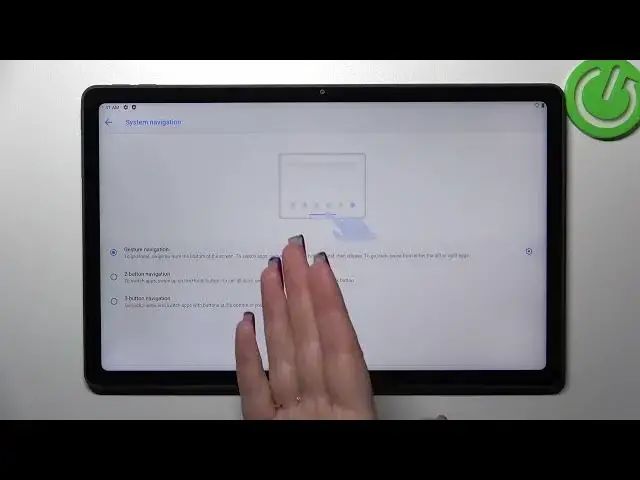
Hi everyone, in front of me I've got Lenovo Tab P11 Plus and let me share with you how to change this navigation type with the buttons to the gestures
0:15
So first of all let's enter the settings and here we have to scroll down a little bit to find the display
0:21
Now let's tap on system navigation and as you can see here we've got three different options from which we can choose
0:28
We've got the three button navigation of course which we've got currently applied
0:32
Here we've got also the animation on which you can check how it actually works
0:37
We can set two button navigation and it's kind of I would say a rare option to choose from
0:44
As you can see it will be immediately applied and the same situation we've got the animation or we can set the gestures
0:50
So all you have to do is to simply tap on this option. And as you can see instead of any buttons at the bottom of the screen we've got this line which will be responsible for particular gestures, for particular actions
1:03
And of course I'll show you later on how to use the gestures
1:07
Of course you can learn from this kind of tutorial but I think that it's better to explain some motions
1:15
But before we will do it let's tap on the settings because here we've got the back sensitivity
1:20
And to be honest I highly recommend to use the gestures for a while so for example for a week and then come back to this option
1:30
Because after using it you will be able to understand which option you really need
1:36
So it simply means that you can change the area which will be responsible for catching your back actions
1:44
You can set it lower so it will be smaller or you can set it higher so it will be wide
1:49
It will just catch your emotions better. So just let me tap on OK
1:54
And basically how to use the gestures. If you'd like to get back to the previous page then all you have to do is to simply swipe your finger from the side to the center of your device
2:04
From the right or the left side it works the same. As you can see we've got this arrow and the same situation from the left side
2:11
If you'd like to get back directly to the homepage then simply swipe your finger up fastly just like that
2:17
Now from the bottom to the center. And here we've got the homepage
2:21
And in order to open the recents you have to repeat the same motion so from the bottom to the center
2:26
But this time do it kind of slowly and hold your finger somewhere here
2:30
Just like that. And as you can see here we've got the recents
2:34
So basically that's all. This is how to set the gestures in your Lenovo Tab P11+
2:41
Thank you so much for watching. I hope that this video was helpful. And if it was please hit the subscribe button and leave the thumbs up