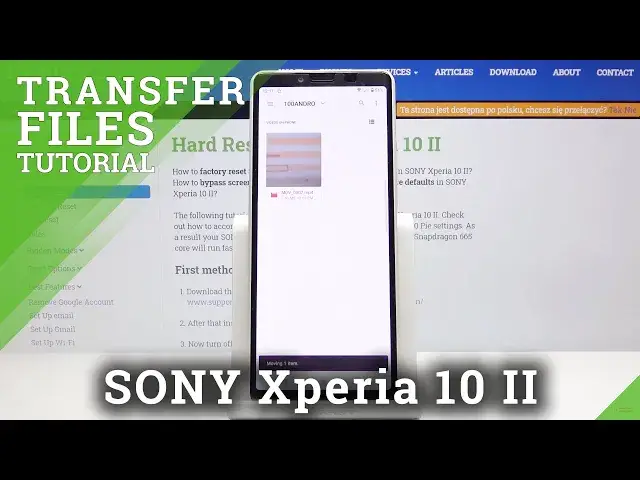
0:00
Welcome! In front of me I have Sony Xperia 10 Mark II and I'm gonna show you
0:11
how to transfer the files from the internal storage to SD card on this
0:15
device. Let's start by opening the file manager. To do it just swipe upwards on
0:20
the screen and then tap on files. Here let's tap on this icon to open the menu
0:28
and let's select for example images and let's go to the 100th Andrew. This is
0:35
camera folder and here we have a picture. To move it to SD card just press and
0:40
hold on it to select it then press or tap on the more options icon in the top
0:46
right corner. Select move to. Now tap again on the on the icon in the top left
0:53
corner to open the menu. Select the SD card and here tap on the folder you want
1:00
to move your file into for example pictures and then tap on move. And our
1:08
file was moved to the SD card. Let's go to the videos for example. Again camera
1:16
select the video. Move to. Tap here. Select SD card folder for example movies
1:28
and move. Okay now let's go back right here to the file manager. Check our SD
1:41
card. Movies folder. Here's our file and pictures folder. Here's our file. We can
1:50
also move the files back to the internal storage. Just select them. Tap on the more
1:57
options icon. Select move to. Here tap on this icon to open the menu
2:05
Now tap right here on the more options icon. Select show internal storage. Now
2:19
you can tap on your phone the internal storage. For example pictures folder and
2:28
tap move to move it right here. Like that. And let's go check. Go to our phone
2:37
pictures and here's our picture. And that's how you move the files from the
2:42
internal storage to SD card and other way around. Thank you for watching. If you
2:48
found this video helpful please consider subscribing to our channel and leaving