0:00
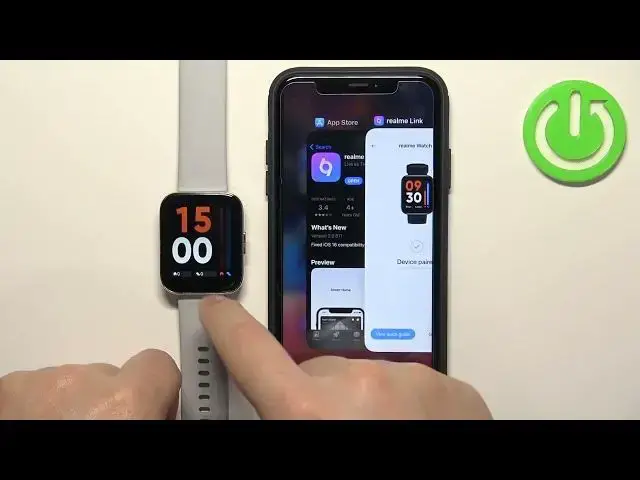
Welcome. In front of me I have Real Me Watch 3 and I'm going to show you how to pair this watch with an iPhone
0:11
First, we need to turn on our watch. You can do it by pressing and holding the side button
0:16
Keep holding it until you see the RealMe logo on the screen. Once you see it, you can release the button and wait until the watch turns on
0:24
After the watch turns on, you should see the list of languages on the screen and you can scroll through this list by swiping a screen
0:29
list by swiping up and down. Now, select the language you like to use on your watch
0:34
and then tap on the checkmark to confirm. And after you select the language, you should see the QR code on the screen
0:41
It means we need to download and install the Rearlemellang application on our iPhone
0:45
So make sure you have internet connection and Bluetooth enabled on your iPhone
0:50
Then open the App Store. In the App Store, tap on the search icon right here
0:57
Then tap on search bar. and type in RealMe link and tap on search
1:06
you should see this application on the list RealMe link tap on it and tap on the get button to download
1:14
and install the application And once the application is done installing, you can tap on the open button to open it
1:39
Once the application opens, you may get a couple of pop-ups about the permissions
1:43
The Bluetooth one is required, so we need to tap on okay. This one you can deny or allow depending on your preferences
1:52
And then we need to agree to the statement of use, so let's tap on Agree
1:59
Tap on Galed. Allow Ordine ID permission for the notifications. Basically, if you want to receive the notifications from your iPhone on the watch
2:10
And then select the location or region. I'm going to scroll down
2:21
Select the United States. States and tap on next. And now you should see the home page of the application
2:29
Let's tap on me icon right here and then tap on register slash sign in because we need
2:34
to be logged in to appare the devices. So tap on this button
2:40
And if you don't have an account you can tap on create account right here or sign in with OTP
2:45
I already have an account so I'm going to tap right here and enter the email address and password
2:52
I going to be able to be and the And then we can tap on sign in to login tap on Agree
3:19
you can see we are logged in. Once you log in you can tap on home, tap on the plus button
3:26
right here, tap on gadget, allow the permission for the location, and once you're done with
3:34
the permissions, your watch should be detected right here in the app. You can tap on it, tap on
3:42
pair, tap on the check mark, allow ordain ID permission for the notifications
3:49
And when you see this prompt, tap on view, this will open this page
3:57
basically with the tutorial what we need to do. Basically what we need to do is to go to the Bluetooth settings on our iPhone
4:04
find the device called Watch Free Dash 5598 on the list of different devices
4:12
and we need to tap on it to connect it. So let tap on settings right here open the Bluetooth settings As you can see we have two lists We have my Devices and other devices This is the list of devices connected to your iPhone already
4:28
But for some reason, we need to connect this one too. So we need to tap on it right here
4:32
So you should see the RealMe Watch 3-5598 on the list of other devices
4:38
If you see it, tap right here on it rather. Tap on Per
4:42
Tap on the checkmark. And now you should have two devices on the My Devices list
4:47
with the same name basically. Once you do, you can close the settings
4:51
Go back to the RealMeLink app. Here you can allow or organize some permissions
4:56
I'm going to just keep it only when I'm using the app
5:01
Then go back. As you can see, now we have the message that devices are repaired
5:06
And our watch is ready to use, basically. Okay, so we can tap on Get Started
5:13
Tap on Agree. Oh, check the bugs. Tap on Agree. And once you agree to the terms of use, you should see the device page for your real-me-watch free
5:22
Also, you should be able to use your watch at this point. Okay, and that's how you pair this watch with an iPhone
5:31
Thank you for watching. If you found this video helpful, please consider subscribing to our channel and leaving the like on the video