0:00
Hi everyone, in front of me I've got Huawei Mate 50 Pro and let me share with you how to enable developer options on this device
0:10
So first of all let's enter the settings and here we have to scroll down to the very very bottom
0:15
to find about phone. Now let's take a look at this second section and we have to find the
0:20
software version. I know it may be quite confusing but first of all we have to activate the developer
0:27
options as they are quite advanced and usually they are not visible. So let's take a look at
0:32
the software version and all we have to do right now is simply keep tapping on it and if you've
0:38
got any kind of screen lock currently set then your device will ask you to enter it in order
0:42
to confirm your whole step. And as you can see right now we are at developer so we can go back
0:47
to the general settings and tap on system and updates. And as you can see in the last section
0:54
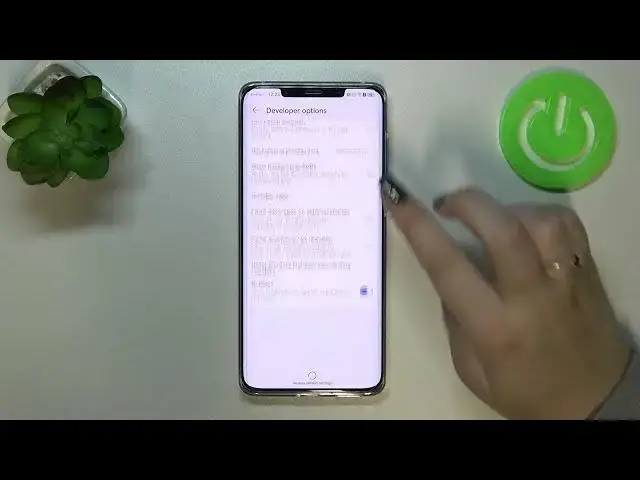
on the very first position we've got the developer options so let's tap on it and here we've got
0:59
plenty of advanced settings which we can customize. So for example we can show surface updates, we can
1:05
show a visual feedback for tabs. Here we've got some options which are connected to bluetooth
1:10
the usb and the wi-fi. So overall connected to the networking, debugging and so on and so on. So
1:17
quite a lot of options and basically if you'd like to turn on the option all you have to do
1:22
is to simply tap on the switcher on it and then the option will be activated and applied. Maybe
1:28
I'll show you on other option for example party location. As you can see it is immediately
1:33
applied. Of course you can turn it off the same way and if you've got the options without the
1:38
switcher so for example like here in the window animation scale just tap on it to open much more
1:44
settings. So if you're done with customization of developer options and if you'd like to turn
1:49
them off all you have to do is to simply go back to the very top of the list and tap on this
1:54
on this first switcher and as you can see we've been automatically transferred to the system and
2:00
updates and in this last section we cannot see the developer options as they were switched off
2:06
manually. But of course no worries you can customize them again if you want to. Just go back to the
2:11
software versions tab and keep tapping on it. So actually that's all. This is how to enable
2:16
developer options in your Huawei Mate 50 Pro. Thank you so much for watching. I hope that this
2:22
video was helpful and if it was please hit the subscribe button and leave the thumbs up