0:00
Welcome, I'm from Amazon LG V60 and today I'll show you how to go through the setup
0:11
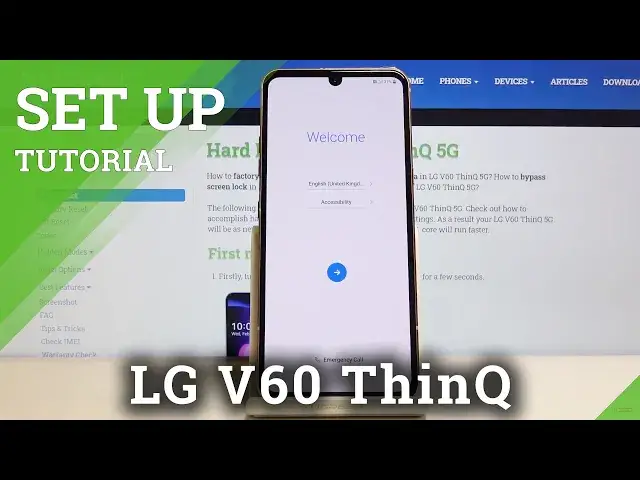
process of the device. So when you put the device up for the first time you'll be presented with the welcome
0:17
screen where you get to choose your language. So just tap on the first field right here and choose your desired language
0:23
Now I'm gonna stick with English so I'm gonna go back but you can see there is a plethora
0:28
of choices here. And from there once you choose your language tap on the arrow and we can progress further
0:34
So you have a new second screen. This is I think partially has to do with the case that you can get for it, the one that
0:43
adds a second screen. I'm just gonna disregard this for now. Then you have insert SIM card
0:48
Now this step is completely optional, doesn't really change anything. I can insert the card right now or you can do it later
0:55
And once you do the outcome is exactly the same, it just immediately starts working
1:00
So let's just skip this. Then you have the WiFi connection. You can connect to WiFi from here or also choose to skip this by tapping next here
1:08
Now I'm gonna skip it. The only thing that it will allow you to do when you connect to WiFi is it will set the
1:14
time automatically. As you can see right now it's, I don't think it's correct, I think it's like, yeah it's
1:20
almost 10 so it's a little bit 5 hours ahead and I'm not even sure if it's the 18th so
1:28
it doesn't really, it's not really correct. So from here let's tap on next
1:35
You can choose to set the time or just skip it. It will set automatically once you connect to WiFi
1:42
Then you have the Google services. So from here I have a couple of things you can disable
1:48
Use location and allow scanning. So both of them, or well one, it's one of the same thing
1:58
Use location to basically know where you are and this works good in cases of Google Maps
2:05
So it knows where you are and it will show you the correct route to your destination
2:09
that you tried to choose. It also allows Google to basically know where you are and give those annoying pop-ups
2:15
For instance if you go to a restaurant it will pop you up with, hey, rate your experience
2:20
in this restaurant, which they shouldn't know you've been there because it's kind of intrusive
2:26
But whatever. And then you have also send user and diagnostic data
2:31
Keep part send user data, which again gathers data on how you use the device and sends it
2:38
to Google so they can, quotation mark, improve the experience. So you can disable or enable this however you want
2:43
I personally prefer to disable this, I don't really care. Then you have secure your phone
2:50
So you can add a method of locking and unlocking your device so not everybody can get to it
2:57
So by default it looks like it's set to fingerprint, which that will also force you to set up a
3:03
PIN pattern or password. So you can choose one or the other, or both
3:09
Well, if you go with fingerprint you have to have two different ways
3:14
So I'm going to go with just a pattern. So let's tap on the pattern, next, and confirm
3:22
Now if you were adding a fingerprint it would first tell you to add one of those three methods
3:27
and then you will be able to just simply scan your finger on the sensor that is somewhere
3:31
like on the display here. And then legacy or legal documents, choose a region you will use this device in
3:40
So for me it's going to be the first one obviously. I'm not sure if that changes anything honestly, or you choose it
3:51
So then you have again legal documents, sign your solo way, and let's click on done
3:59
And we're finished the setup. So that's how you go through the setup process of this device and if you found this very
4:05
helpful don't forget to hit like, subscribe, and thanks for watching