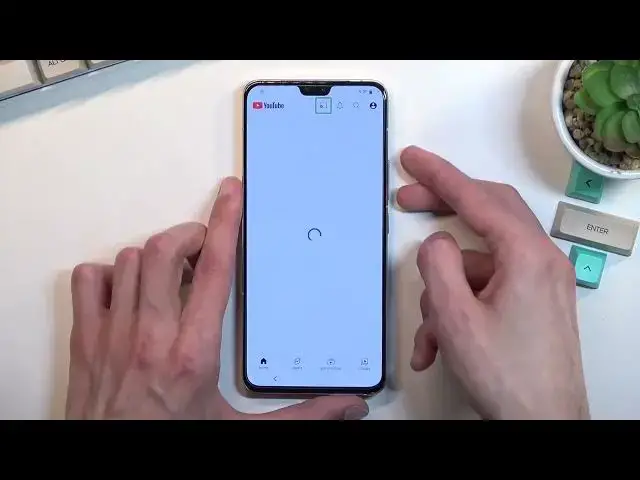
0:07
And follow me is a VVO V23, and today I will show you how you can bypass the Google verification on this phone
0:14
So you can clearly see the phone I have right here as locked, and I can unlock it either using the pattern that was previously used or right up right here
0:22
I can unlock it using the previously logged in Google account. But assuming we don't know either of those
0:28
you will just simply bypass this. Now to get started, you want to progress a little bit through the setup until we get to this page right here, the Wi-Fi connection
0:36
and you do want to connect to some kind of network. As you can see, I have already done so, so there we go
0:41
Once you're connected, you want to back out to the first page right over here, and you will select the Auxiliary Settings for Reading
0:50
You want to select Talkback and enable it by checking this switch right here
0:57
Stop back on. Now, I'm going to just kind of like... Seriously
1:13
Oh, forget it. Apparently I can't actually mute it fully, so I'm just going to keep holding the speaker just so I can actually talk during this
1:24
It's still quite loud, at least for me, distracting enough, when it's talking
1:29
So anyway, let's continue. Once you see this page right over here, you will draw a mirrored L starting from the bottom, so like this on the screen
1:39
This will bring up this window right over here, and you want to select while using this app
1:43
Now, while the Talkback has enabled, touchscreen want function as it normally does
1:49
So right now you'll need to be selecting each option by single tapping on it, and then double tapping on it to confirm it
1:55
As you can see. Once you selected the first one while using the app
2:02
it will show you this pop-up right here. I'll select use voice commands
2:08
And before you double top on it, I will just quickly go into what we will need to do
2:13
So once you tap on it, it will start listening to you and you want to give it a voice command saying
2:19
open Google Assistant. That is exactly what you're going to say. Once you do so, it will open up the voice assistant for Google
2:26
at the bottom right here. And once that's open, you will see like these three or four little Google bars that will listen to you
2:36
And you want to say open YouTube. So I'm going to do that right now once I double click on it so you can hear how that goes
2:46
Open Google. I messed it up even. I started too slow because apparently it needs to be said literally immediately
2:55
So let's try it again. Open Google Assistant. Open YouTube
3:07
Open YouTube And there we go That basically what you want to do So from here we will now need to suspend TalkBack
3:18
so we can actually navigate through the menu normally. So you do so by holding volume up and volume down at the same time
3:26
It will bring up this window in a second. There we go. And from here, we want to select turn on, double top on it
3:34
And then hold those two keys again, volume up, and volume down. And we can now use our screen normally
3:40
and talkback is now turned off. So with that in mind, you want to select the account icon
3:48
then select settings, how about, and then Google Privacy Policy. Select Accept and continue and no thanks
3:58
And right at the top, you want to type in, type a hard reset. That info slash bypass
4:07
Like so. Now if you need a moment to write it down, do pause the video
4:21
From here, I'm going to scroll down to the Settings Ups. You want to tap on it
4:30
And then we're going to scroll all the way down to System. I'm going to select Reset
4:37
options and you want to select if I'm correct reset all settings now quickly
4:42
check it just to be absolutely sure of this yep so we're gonna select reset
4:50
all settings reset all settings and that once again now apparently
5:07
we're going to start again from the beginning with a little bit of a difference once we can
5:16
So we're going to get back to our settings again, or the actually web browser, and from there
5:21
we're going to select ScreenLack set many options or option. So... Okay, so let's again do the same thing as we did before
5:58
We all are already connected to network, I hope, so I'm going to quickly just check if that is the case
6:04
You don't need to do the same thing. if I'm connected then most likely you are as well I just want to see if the device keeps the
6:13
connection from like the previous session it looks like it does not so we do need to actually reconnect so progress to it connect back up I going to quickly do that right now
6:33
There we go. So once you connect, you can disregard it, looking for whatever
6:36
It's still locked. There is no point really checking it. We're going to go back. We're going to select again the auxiliary options
6:43
Talk back. Enable it. Allow. Try an L. Use voice come up. Use voice come up
6:54
Open Google Assistant. Open YouTube. Open YouTube. Then we're going to pause it by holding volume up and down
7:10
Turn on, hold again. Now it's off and we can continue using our device
7:17
Now I'm quickly blasting through this because we're just repeating what we already did
7:21
So again, account, settings about Google Privacy Policy. Right at the top
7:30
And let's see. We're again going to type in hard. We set that info slash bypass
7:45
Again, let's go. Let's give it a second, it's going to give us an annoying pop-up
7:53
Hopefully, no. Oh, it looks like it won't. Yep. And I believe we need to get this, right
8:09
We're going to quickly just make sure. Yep, so we need to get the last one, click on it
8:17
From here, we're going to... here we're gonna choose one of the methods now I recommend using the same thing
8:24
that I will as what I will be using just because it will make it a little bit
8:28
easier throughout the setup or the bypass process so I'm gonna set up a pin and
8:34
I'm gonna make it super easy one two three four I recommend you like I said to do
8:38
the same select next one two three four again to confirm it and what we
8:44
just did is set up a screen lock on our phone And what this basically did is overrid the previous pattern that was set on the device
9:00
So let's see, right here once we set it up. I guess we have to select yes some n That makes any difference Apparently it does not Anyway I think it already sets up the screen lock Yep it does So you can see even though we in a setup
9:47
we can already confirm it or we need to confirm it to actually access the device. So from
9:55
here we're going to just see either we need to back out or reboot the device. I'm going to
10:01
try backing out and I'm going to quickly jump through these setup
10:25
okay so we can do it this way as you can see it's now telling us to verify nut pattern as it was at the
10:31
but it's telling us to verify pin now. Now the pin is obviously the one that we have used
10:36
so one, two, three, four. The next, and this unlocks the device
10:41
And we can now skip signing in, skip, and we can finish up the setup
11:01
And you can see we are now on a home screen. Now there is one last thing recommended to do, which is perform a factory reset of the device
11:13
through settings. So you do so by obviously navigating into your settings
11:18
Scroll down again to system and this time around you want to select reset options, erase all
11:24
data, factory reset, erase all data. Again confirm that pin and then top on it
11:31
erase all data right here. Now the reason you want to do this is if there is any kind of
11:38
leftovers from the previous account performing a factory reset right now on this device
11:43
will basically remove everything from that phone so Google accounts the pen that we have even set up
11:48
and previously used pattern if it's still there though I don't think it is. So this will virtually
11:54
unlock the device fully. Now I won't really go through this on the video just because performing a
12:01
if I'd reset right now, would just kind of waste your time
12:05
It just goes automatically through the entire thing, brings us back to the setup screen
12:10
At which point you can set up your device as you would do normally without doing any kind of
12:14
tricking trickery like we did right now. So you can just connect to, for instance, network or skip it if you want it to
12:21
It's completely up to you as it normally would be. So that's why I'm not going to go through it
12:26
So that being said, this is how you could, or how you do, bypass
12:31
the Google verification on this device and if you found this very helpful don't forget to hit
12:36
like subscribe and thanks for watching