0:00
Hi! Today I would like to show you how you can transfer files from an Android device to Xiaomi Redmi Note 10 Lite
0:15
First of all, open Play Store on both and click on the third bars
0:24
Now type in SendAnywhere and get this free app from this developer
0:33
When your app is ready, open it. In order to use SendAnywhere app, you need to do exactly the same on both smartphones
0:54
Click on I accept, confirm, continue and allow. Now on the other one. I accept, confirm, continue, allow
1:14
In this window you need to click on OK in order to close it
1:21
If you want to, you can also tap on Not Now before it
1:26
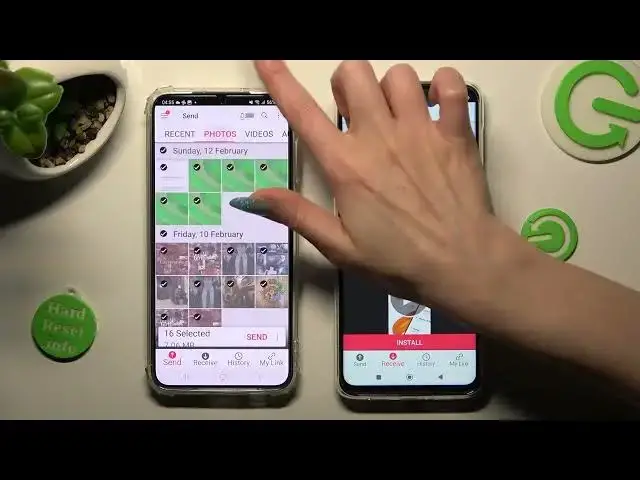
Finally, from here select Send at the bottom left corner of your Samsung and receive in the middle of Send and History on Xiaomi
1:43
Also on Xiaomi tap on the Best option for your ads. Yes, I agree or no, thanks
1:53
Then select Close this window. Now go back to an Android and tap on all of those dots from all of those categories in order to select all of those files
2:17
When you're ready, tap on Send next to Selected in order to go on
2:24
You can also just click on some of your files. I will go with this one photo. Choose Send as well
2:37
And tap on Got it? In here some tip pop up. Now pick the best connection way for you
2:48
If you wish to scan this QR code, select this scanning icon on Xiaomi next to Input key
2:57
Click on While using the app or only this time to allow camera access
3:05
And point your Xiaomi's camera at the code. After that your device will be connected
3:15
If you wish to input this key though, you need to tap on Input Key section
3:23
Type in all of those numbers from an Android. And connect by tapping on Receive
3:37
Now after a while, as you can see, my photo was successfully sent
3:49
Thanks so much for watching. If you enjoyed this video, smash that like button, comment and subscribe. Bye
4:06
www.microsoft.com www.microsoft.com