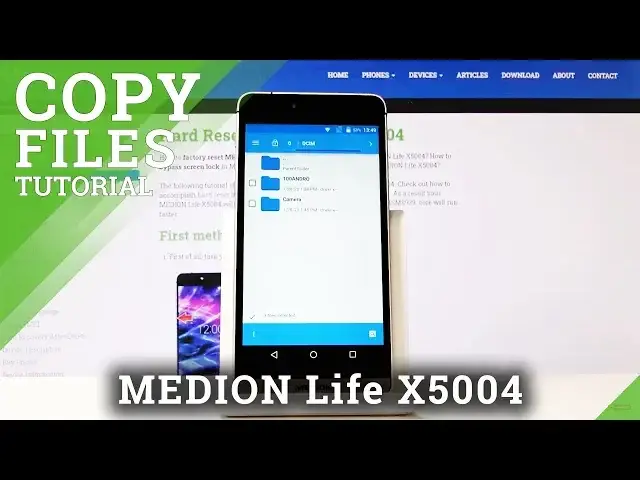
0:00
Welcome, my name is Medianx5004 and today I'll show you how to transfer files
0:11
So to get started you want to open up your file app, it's the blue folder with a circle
0:16
file manager and from here find where your files are located at
0:21
Mine are in the internal storage so right here and you can tap on images and you'll
0:28
see that they're right here but we need to actually find them in the folders itself so
0:33
we can select it. So if you're looking for pictures and videos that I have captured with the device they
0:39
will always be located under the DCIM folder, pictures will have screenshots in them, music
0:46
you probably placed there yourself, downloads will have anything that you have downloaded
0:49
using the web browser or emails and yeah basically anything else should be there placed by the
0:57
user itself. So let's just go into the DCIM where I have the files and from here you see the boxes
1:03
on the side you can simply tap on it to select them like so, I can select all of them
1:10
If you have a lot of the photos and stuff like that that you want to select you don't
1:15
actually need to select each one individually you can just select the entire folder itself like so and once it's selected we then want to tap right here on the three dots and we
1:25
want to go into, where is it, move selected. So I guess selecting it already does the job so we can see actually that it's already selected
1:41
and we now need to navigate to where we want to move it
1:46
So if you want to move it to your SD card for instance you then want to switch to the
1:51
SD card by tapping on the three bars right here and choosing SD card or it can work also
1:56
the other way around if you started with the SD card. So let's again tap on all and now we can paste it right here or we can create a folder if
2:06
you wish so we could tap again on the three dots and then tap on new folder like so, so
2:13
I can name it the same way DCIM there we go and I can go into here and tap on three dots
2:20
again and press either move selected here or copy selections here
2:30
So choose whichever one you want, copy will make an additional set of the same files while
2:35
move will actually remove them from where they are right now and move them to this location
2:39
I'm going to choose move for this purpose and it starts moving them and there we go
2:44
we can see that they are all here now and this is all located in the DCIM folder
2:51
So now if I were to go back to the internal storage and again let's go into images you
3:02
can see that there is only a screenshot left the photos that I have moved are gone
3:07
So this also works with any kind of other file it's not restricted only to photos and
3:13
folders so but the process is exactly the same and if you found this very helpful don't
3:17
forget to hit like subscribe and thanks for watching