0:00
Hello! In front of me I have FossilQ Explorist and I'm gonna show you how to pair it with
0:11
your phone. First let's tap on the screen of our watch. Now we can select the language
0:18
to do it. Swipe up and down on the screen to scroll through the list, find the language
0:23
you like to use and tap on it to select it. I'm gonna select English United States. Now
0:29
we need to download and install Wear OS app on our phone. To do it open the App Store
0:35
in my case it's Google Play Store. Tap on search, enter Wear OS and tap on search. On
0:49
this page tap on install to install the app. And after the app is done installing tap on
1:02
open to open it. Now let's tap on start setup. Here tap on agree. Now you can agree to the
1:14
sending the diagnostic data to Google if you want to. To do it tap on agree or no thanks to
1:20
skip it. I'm gonna tap on no thanks. Now let's select the Q Explorist from the list of devices
1:27
If it won't communicate with your watch try on tapping on retry. Then tap pair
1:45
Here you can copy the Google account on your watch if you want to. To do it select it by
1:52
enabling it right here and by tapping the slider next to the account you want to copy. Then tap
2:00
next. But if you want to skip this step and don't copy any accounts on your watch simply tap on
2:06
skip button right here. I'm gonna copy mine. I'm gonna select this account and then tap next
2:12
Then tap copy. If you have some kind of screen lock method or fingerprint protection just confirm
2:26
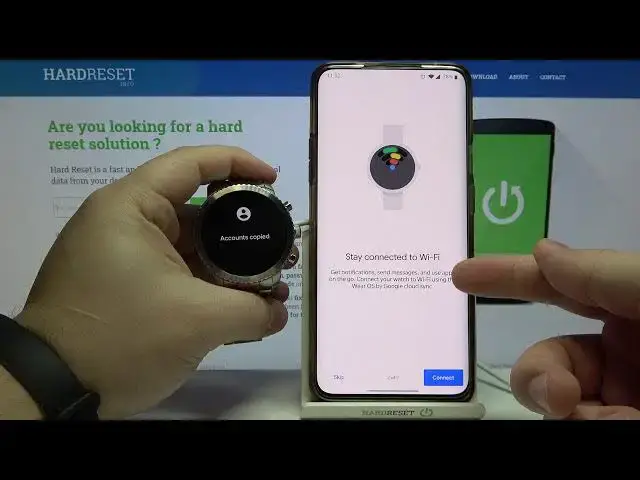
by entering the PIN or by using your fingerprint. Here you can enable to stay connected to Wi-Fi
2:38
all the time. If you want to. Oh no. Here you can connect to Wi-Fi basically. To do it tap on connect
2:47
You can also skip this step by tapping skip. I'm gonna tap on connect. Now we can enable to chat
2:54
with our friends. To do it tap next or skip to disable this feature. I'm gonna tap next. And if
3:01
you want to use this feature you need to allow some permissions. So tap on allow. Like this. Now
3:07
we can enable the calendar. To do it tap next or if you want to skip it skip. Tap skip. My bad
3:15
I'm gonna tap next. Allow the calendar permissions. And here we have notifications. You can skip by
3:23
tapping on skip button or allow and enable the notifications. Let's tap on allow and then tap
3:30
allow right here. Here let's tap next. And now let's wait until the setup is complete
3:38
Now let's tap on done. Wait until you see you are all set on your watch. And at this point your
4:06
watch is paired with your phone. Thank you for watching. If you found this video helpful please
4:13
consider subscribing to our channel and leaving a like on the video