0:00
Hi everyone. In front of me I've got Vivo V29 and let me share with you how to enable the
0:05
developer options on this device. So let's start with opening the settings and here
0:16
of course in the general settings we have to scroll down to the very bottom to find about phone
0:22
Now we have to localize a special number which is called build number and it can be in the status
0:28
sorry in the software information. So let's enter and as you can see the build number is right here
0:33
All we have to do right now is to keep tapping on it until you'll see that you're in the developer
0:37
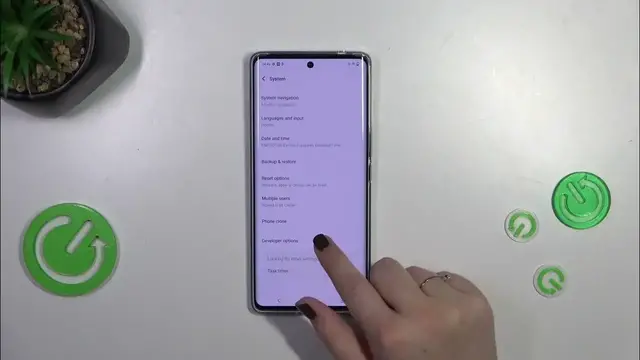
mode. After that we can simply come back to this general settings section and enter the system
0:45
which is right above the about phone. Now let's tap on the developer options and as you can see
0:51
right here we've got plenty of advanced settings which we can customize. So for example we can
0:56
reinforce our TL layout direction, we can show layout bounds, we can show pointer location or visual feedback
1:03
for tabs which is usually applied in the screen recorder option. Here we've got some options which
1:08
are connected with the bluetooth, with USB, Wi-Fi. So overall we've got the networking here etc. So a lot
1:15
of a lot of options to to customize and all you have to do in order to turn on the feature is to
1:21
simply tap on the switcher on it. So it works the same just like in the regular settings. After
1:26
applying it will be immediately shown. Of course you can turn it off the same way and if you've got
1:31
the options without the switcher like here in the window animation scale just tap on it to open more
1:35
options to choose from. If you're done with customization of developer options you can always
1:41
turn them off just by tapping on the switcher at the top which is pinned to the top of the screen
1:46
just tap on it and as you can see most of the options will be inactive and after getting back
1:51
to the system settings and they should disappear immediately. But of course no worries you can
1:56
customize them again just go back to the build number step and keep tapping. All right so that
2:02
will be all. Thank you so much for watching. I hope that this video was helpful and if it was
2:07
please hit the subscribe button and leave the thumbs up