0:00
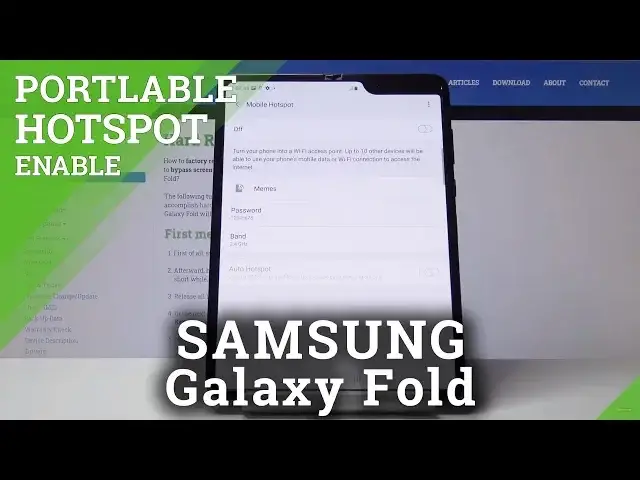
Welcome, in front of me is a Samsung Galaxy Fold, and today I'll show you how to set up
0:10
a portable hotspot. So to get started, let's pull down the notification panel, extend it, and let's find the hotspot
0:17
toggle somewhere in here. So it looks like it's right here. Now your position of the toggle might vary, so just look for it either here or on the
0:25
second page. And before you toggle it on, you number one want to actually set it up so you know what
0:30
the password for it is. So hold the toggle, and this will take us right here
0:35
And then you have the Galaxy Fold 41, that's gonna be the name of the WiFi
0:40
So we can tap on it, change it to, I don't know, something else, like this, whatever
0:48
the name doesn't really matter. And from here you have password, so tap on that, change it to something that you might remember
0:55
The only thing to keep in mind, it needs to have at least 8 characters, as you can see right here
1:00
So I'm gonna make mine 8 characters, there we go. And tap on save
1:06
And here you have also a band. So by default it sets it to 2.4, which is basically usable by almost every Android that
1:17
has any kind of WiFi capability. Or you can go to 5GHz, which is an improvement over the 2.4, it's gonna be faster and just
1:26
overall stronger and better. But the key thing to keep in mind, not every device will support it, the older device will not
1:35
So from a certain point manufacturers started making them better, and basically if you try
1:41
to connect to WiFi when it's set to 5GHz and you don't even see your network name, that
1:45
means that your device isn't supported. So we'll just go back here and change it to 2.4 and it should work then, like a charm
1:54
And once that's all set, you can just leave here, again pull down the notification panel
1:59
toggle it on, toggle that on, and I can't because I don't have a SIM card in the device
2:05
but you just tap on it, it automatically enables, and you can now connect your devices to it
2:09
And to disable you just tap on it again and it becomes greyish and it's disabled
2:14
So if you found this very helpful, don't forget to hit like, subscribe, and thanks